Are Clipboard Managers Safe on Mac? A Practical Privacy Checklist

A clipboard manager can be safe on Mac. But it is not harmless by default.
Its job is to remember what you copy. That may include ordinary links and snippets, but also private messages, customer data, passwords, API keys, screenshots, files, and one-time sign-in URLs.
The safest clipboard manager is not necessarily the one with the strongest privacy slogan. It is one you downloaded from the real developer, whose data flow you understand, and whose capture, retention, sync, network, and integration settings you have reviewed.
Product behavior and documentation checked September 11, 2026.
The short answer
Clipboard managers are generally safe when they:
- come from the Mac App Store or the developer's verified website;
- are signed by an identified developer and notarized by Apple;
- clearly document where clipboard history is stored;
- let you exclude password managers and other sensitive apps;
- offer a finite retention period and reliable deletion controls;
- explain every feature that can send clipboard-related data over the network;
- request only the macOS permissions needed for features you use;
- make sync, analytics, AI access, and link previews understandable and controllable.
Avoid a clipboard manager if the download source is questionable, macOS cannot verify the developer, the privacy policy is vague about copied content, or there is no practical way to exclude and delete sensitive history.
A clipboard manager should also never replace a password manager. Clipboard history is designed for retrieval, not for protecting long-term secrets.
Why clipboard history changes the risk
The normal clipboard is temporary working memory. Clipboard history turns that working memory into stored data.
That creates several distinct risks:
| Risk | What can happen | Main protection |
|---|---|---|
| Fake download | Malware is distributed under the name of a legitimate app | Use the App Store, official website, or verified repository |
| Excessive capture | Passwords, tokens, private links, or confidential documents enter history | Exclude apps and concealed items; pause capture when needed |
| Local access | Someone with access to your Mac, account, files, or backups reads old clips | Lock the Mac, use FileVault, encrypt backups, and limit retention |
| Network exposure | Link previews, sync, analytics, OCR, or AI features transmit data | Review each network feature separately and disable what you do not need |
| Integration access | An extension or AI tool can search or read stored history | Approve tools individually and revoke access when finished |
A good privacy review covers all five. “Stored locally” answers only one of them.
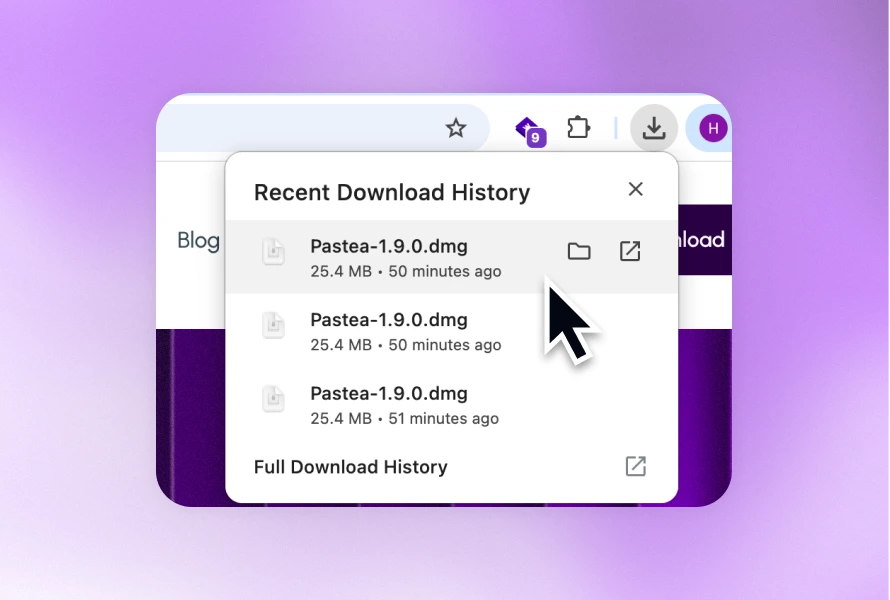
1. Download the real app
Start before installation.
As of September 11, 2026, the official Maccy repository warns that fake websites are distributing malware disguised as Maccy. The developer identifies maccy.app as the only official website.
This is not a theoretical clipboard-specific concern. An app that appears to need continuous access to copied material is a particularly convincing disguise for malware.
Prefer, in order:
- The Mac App Store listing linked by the developer.
- The developer's official website.
- The project's verified GitHub releases page.
- A package manager linked by the official documentation.
Do not trust a domain merely because it contains the app's name. Avoid download aggregators, sponsored search results with unfamiliar domains, and repackaged installers.
Apple calls the App Store the safest place to obtain Mac software. For direct downloads, Gatekeeper checks the Developer ID signature, notarization status, and whether the software has been altered. Apple's guide to safely opening Mac apps recommends caution rather than automatically overriding a warning.
2. Check signing and notarization
A legitimate direct-download Mac app should normally be signed with a Developer ID and notarized.
Apple's notarization documentation explains that the service scans submitted software for malicious components and code-signing problems. It also makes an important distinction: notarization is an automated security check, not a full App Store review.
In other words, notarization is useful evidence that you received an untampered app from an identified developer. It does not prove that every product decision or privacy practice is good.
Advanced users can ask Gatekeeper to assess an installed app in Terminal:
spctl -a -vv --type exec "/Applications/App Name.app"
Apple documents this command in its notarization troubleshooting guide. An accepted direct-download app will commonly identify its source as a notarized Developer ID. App Store software reports a different trusted source.
Do not use a Terminal command from a random installation guide to strip quarantine attributes or disable Gatekeeper just to make an unknown clipboard app run.
3. Find out where clipboard history is stored
“Private” is vague. Storage architecture is concrete.
A privacy policy should tell you whether copied content is stored:
- only on your Mac;
- in your personal iCloud storage;
- on servers operated by the developer;
- through another sync provider;
- on another device connected to your account.
These are different arrangements:
| Storage model | What it means |
|---|---|
| Local-only | The developer does not hold the history, but people or software with access to your Mac may still reach it |
| Personal iCloud or CloudKit | History leaves the individual Mac and becomes available through your Apple Account and approved devices |
| Developer-operated cloud | The vendor has custody of stored or transmitted clipboard data and must secure that infrastructure |
| Undocumented | You do not have enough information to make an informed decision |
For example, Maccy's official site says its history is stored on the computer. Raycast says its clipboard data is encrypted and stored locally. Paste's privacy policy says history is stored locally, with an optional copy in personal iCloud storage when sync is enabled.
Pastea's privacy policy describes local clipboard history on Mac, iPhone, and iPad, without uploading clips to Pastea's servers. Optional iCloud sync uses the user's private iCloud database and is off by default. The Mac app captures in the background; on iPhone and iPad, supported clips are saved when you open the app or explicitly share or save content to it.
Local storage reduces the amount of clipboard data entrusted to a vendor. It does not protect an unlocked Mac from a colleague, a shared macOS account, an administrator, malware, or an exposed backup.
4. Exclude passwords instead of trusting detection alone
Many password managers mark copied values as concealed or temporary. Well-designed clipboard managers recognize those pasteboard signals and avoid saving the item, hide it, or remove it when the source does.
Maccy documents several confidential and temporary copy types that it ignores. Raycast lets users add disabled applications, with Passwords and Keychain Access listed as common examples.
Those controls help, but they are not perfect.
A password manager, developer tool, banking app, browser, or internal company app may fail to mark sensitive content correctly. A clipboard manager also cannot reliably determine whether a random-looking string is an API key, an order number, or harmless test data.
Use explicit exclusions where possible:
- Add your password manager to the ignored-app list.
- Exclude Apple's Passwords and Keychain Access if the manager does not already do so.
- Consider excluding banking, healthcare, HR, or internal security tools.
- Configure concealed items not to be stored at all.
- Pause capture before handling credentials or confidential client material.
Pastea supports ignored applications, ignored content types, concealed-item exclusion, and temporary capture pauses. The controls are documented in the Pastea help center.
The rule is simple: detection should be a backup. Exclusion should be the policy.
5. Keep less history
Every additional week of history increases the amount of material available to recover—and the amount available to expose.
Choose retention based on what you actually use:
- A day or week may be enough for accidental overwrites.
- A month can suit people who retrieve project material from earlier work.
- Unlimited history should be a deliberate choice, not an untouched default.
- Stable snippets belong in a curated list or snippet collection, not necessarily in permanent raw history.
Check what happens to pinned or favorited clips. Many apps keep them after ordinary history expires.
Also verify that you can:
- delete one item;
- clear a recent time window;
- erase all history;
- remove synced copies;
- erase data before uninstalling the app.
On macOS Tahoe, Apple's built-in Spotlight clipboard history can be cleared from the Clipboard view. Apple explicitly warns that sensitive information may appear in Clipboard history.
The current Command-V item, Spotlight history, and a third-party manager's stored history are separate. Our guide to clearing the clipboard on Mac explains how to remove each one.
Deleting a clip from an app may not immediately remove older copies from Time Machine, filesystem snapshots, or other backups. Retention inside the app and retention inside your backup system are separate questions.
6. Audit every feature that uses the network
An app can store history locally and still make network requests involving individual clips.
Review these features separately.
Link previews
A clipboard manager may fetch a copied URL to display its title, icon, or social image. That request can reveal the URL, your IP address, and the time of the request to the destination website or its infrastructure.
This matters when URLs contain:
- password-reset tokens;
- one-time sign-in credentials;
- private document identifiers;
- invitation codes;
- internal hostnames;
- search terms or customer details.
Look for a switch to disable link previews. Pastea also avoids previews for concealed items and links it identifies as sign-in, authentication, or password-reset URLs, but its privacy policy is explicit that automated URL detection cannot catch every sensitive link.
Screenshot OCR
If the app can search text inside screenshots, find out where recognition happens.
On-device OCR keeps the image and recognized text on the Mac. Cloud OCR sends at least part of the image to another service. Neither design should be hidden behind a generic “smart search” description.
Pastea performs screenshot text recognition on the Mac using Apple's on-device frameworks. Raycast's current clipboard manual also describes its image text recognition as on-device.
Rewrite, translation, and AI actions
An app may store the original history locally but transmit a selected clip when you ask it to summarize, translate, rewrite, or analyze that content.
Before using such a feature, ask:
- Which provider receives the clip?
- Is only the selected item sent, or can the feature search full history?
- Is transmission triggered by an explicit action?
- How long does the provider retain the input?
- Can it be used for model training?
- Can the feature be disabled?
“Local clipboard history” and “cloud-processed AI action” can both be true at the same time.
7. Read the analytics details, not just the label
“Anonymous analytics” does not tell you what an app collects.
A useful privacy policy should name the fields. Look for answers about:
- clipboard text and images;
- copied URLs and file paths;
- source-application names;
- search terms;
- history size;
- feature usage;
- device information;
- installation identifiers;
- account or purchase information;
- crash-report contents.
Clipboard content should be excluded explicitly, not left to implication.
Our own Pastea privacy policy lists the app, device, configuration, and purchase-related information that optional analytics can contain. It separately states that clipboard content, copied URLs, file paths, images, screenshots, passwords, and code are excluded. Analytics and crash reports have separate switches.
That level of detail matters more than the word “anonymous.”
8. Understand sync before enabling it
Sync changes the boundary from one Mac to multiple devices and an intervening service.
Check:
- Is sync off until you enable it?
- Does it use personal iCloud storage or the developer's servers?
- What content and metadata are synced?
- Which devices can receive history?
- How do you remove a lost or retired device?
- Do deletions and retention changes propagate?
- Can the developer access synced records?
Pastea's optional sync uses the private CloudKit database associated with your Apple Account and can share saved history across Mac, iPhone, and iPad. Pastea does not operate the sync server or have access to that history. Paste documents a similar personal-iCloud model for its clipboard data.
Remember that application sync is not the only cross-device clipboard feature. Apple's Universal Clipboard automatically makes the current copied item briefly available to nearby devices signed in to the same Apple Account when Handoff, Wi-Fi, and Bluetooth are enabled.
Turning off a clipboard manager's history sync does not turn off Universal Clipboard.
9. Treat AI tools and extensions as separate readers
Some clipboard apps can expose history to extensions, automations, or AI assistants. That can be useful, particularly when retrieving code, links, logs, and research. It also adds another party to the privacy decision.
Pastea's MCP integration is off by default. It listens only on the Mac, requires each tool to be approved separately, gives each connection its own token, and lets the user revoke access. Connected tools cannot delete clips, and concealed items are excluded.
But the boundary does not end there. Once an approved AI tool reads a normal clip, that tool handles the content under its own privacy policy.
The same principle applies to built-in AI actions in other products. Raycast's privacy policy distinguishes local-first features from AI and cloud features that may transmit relevant context to Raycast infrastructure or an AI provider.
Before connecting anything to history:
- remove or exclude old secrets;
- approve only tools you actively use;
- understand whether the tool can read one clip or search many;
- revoke abandoned integrations;
- avoid granting broad history access merely to test a feature.
10. Review macOS permissions
A clipboard manager needs to observe clipboard changes while capture is enabled. That does not automatically justify every other macOS permission.
Accessibility access is commonly used to paste a selected item directly into the app you were using. It is a broad permission, and Apple recommends granting it only to apps you know and trust. You can review the list in System Settings → Privacy & Security → Accessibility; Apple's Accessibility permission guide explains how to revoke access.
Ask why the app requests each permission:
- Accessibility: Automatic pasting, shortcut expansion, or source-app context.
- Folder access: Capturing saved screenshots or files from a chosen location.
- Automation: Controlling another specific application.
- Full Disk Access: A much broader request that deserves a precise explanation.
Pastea does not require Accessibility permission to store or search clipboard history. Without it, Pastea can put the selected clip back on the clipboard and let you press Command-V manually. Granting Accessibility enables direct pasting and additional origin context when macOS makes it available.
A good app should explain what stops working when you deny a permission instead of refusing to run altogether.
11. Protect the Mac and its backups
Local-first software moves responsibility closer to you.
Anyone with access to your unlocked user account may be able to open the clipboard manager and search its history. Someone with sufficient access to local files or backups may also reach stored application data.
Use the protections around the app:
- Enable a strong macOS login password.
- Lock your screen when leaving the Mac.
- Avoid sharing one user account with other people.
- Keep macOS and the clipboard app updated.
- Turn on FileVault where appropriate.
- Encrypt Time Machine and other backup disks.
- Clear clipboard history before lending, selling, repairing, or handing over an unlocked Mac.
Apple says FileVault adds protection against access without the login password. Apple also recommends encrypting Time Machine backup disks.
Local storage reduces remote custody. It does not make weak device security disappear.
How Spotlight, Pastea, Maccy, and Raycast fit the checklist
This is not a complete security verdict for each product. It shows how the same questions apply to different clipboard-history options based on their current official documentation.
| Option | Useful controls currently documented | What still needs your attention |
|---|---|---|
| Spotlight in macOS Tahoe | Built into macOS, Clipboard Search must be enabled, and full history can be cleared | Apple warns sensitive information may appear; no per-app exclusions are documented in its public clipboard guide |
| Pastea | Local history, opt-in private iCloud sync, concealed-item exclusion, ignored apps and types, capture pause, retention controls, optional previews and analytics, per-tool AI approval | Protect local files and backups; review the policy of any connected AI client |
| Maccy | Local storage, open source, ignored concealed and temporary types, capture pause, history clearing | Download only from the official source; review its advanced exclusion settings for your workflow |
| Raycast | Encrypted local clipboard history, configurable retention, disabled applications, capture toggle, image recognition | Treat link previews, AI actions, and Raycast's broader cloud features as separate data flows |
If you run macOS Tahoe and only need recent recovery, Spotlight may be enough. Our guide to viewing clipboard history on Mac explains how to enable and clear it.
A five-minute clipboard privacy audit
Open your clipboard manager's settings and work through this list:
- I installed it from the App Store, official website, or verified repository.
- Gatekeeper accepts the app, and I did not bypass a security warning.
- I know whether history is local, synced through iCloud, or stored by the vendor.
- My password manager and other sensitive apps are excluded.
- Concealed clipboard items are not stored, or are handled as I expect.
- Capture can be paused quickly.
- Retention is no longer than I need.
- I know whether pinned items survive automatic deletion.
- Link previews are off if I copy private URLs.
- I know whether screenshot OCR runs locally.
- I reviewed analytics and crash-report settings.
- I understand what sync sends and which devices receive it.
- I reviewed every AI tool, extension, and automation with history access.
- The app has only the macOS permissions required for features I use.
- My Mac and backup disks are protected.
If an app makes several of these questions difficult to answer, that is useful information in itself.
So, are clipboard managers safe?
Yes, a well-designed and correctly configured clipboard manager can be safe for ordinary Mac use.
The risk comes from treating it like an invisible utility. It is really a searchable archive of material that was once temporary. Download authenticity, sensitive-app exclusions, retention, network features, integrations, and device security all matter.
We build Pastea, so we are not neutral. We designed it around local clipboard storage, explicit exclusions, finite retention, optional iCloud sync, controllable link previews, and revocable AI-tool access. We also do not claim that local-first means risk-free.
Read how Pastea keeps clipboard history private for the shorter product-specific explanation, or inspect the full privacy policy for the exact data flows and limitations. If that model fits your requirements, you can try Pastea on your Mac before deciding whether to keep it.
Sources
- Apple: Safely open apps on your Mac
- Apple: Notarizing macOS software
- Apple: Search Clipboard history in Spotlight
- Apple: Accessibility app permissions
- Apple: FileVault and encrypted Time Machine backups
- Maccy official website and repository
- Raycast Clipboard History manual
- Paste privacy policy
- Pastea privacy policy
- Pastea help center