Protected saved clips and clearer numbered paste shortcuts.
Fixed
Saving a clip to a list keeps it safe from automatic history cleanup, even when cleanup runs at the same time.
The first ten paste shortcuts show digits on French/AZERTY keyboards in both clipboard panels and Settings, while respecting custom bindings.
1.19.5
Reliable bottom-panel history and neatly sized help cards.
Fixed
Copied clips stay visible in the bottom panel when opening it, searching, or returning to History.
Improved
Help cards sit side by side and match the size of other cards in the bottom panel.
Empty-history and search messages keep the bottom panel compact.
1.19.4
Copy clips with a click while keeping the panel open.
Added
Enable Copy on click in Settings → Preferences to copy a clip without pasting or closing the panel. It’s off by default, so clicking still pastes until you enable it. Option-click remains available for occasional copying.
1.19.3
Copy whole spreadsheet columns into Sequence, or Option-click a clip to copy without pasting.
Added
Option-click a clipboard card to copy that clip without pasting or closing the panel. Find the gesture in Settings → Shortcuts.
Improved
Sequence Paste supports up to 10,000 nonempty cells per copy, with background preparation and efficient scrolling for large sequences.
Fixed
Copying a whole spreadsheet column creates separate Sequence items, preserving their order and repeated values while skipping blank cells.
Structured cell text takes priority when a spreadsheet also copies an image preview. Intentional picture copies remain images, and original clipboard formats stay available for paste-back.
1.19.2
More efficient history loading and quieter activity while Pastea is hidden.
Improved
Large histories use indexed loading, and search prepares results in the background. Your saved clips and navigation order stay intact.
Selecting clips updates the selection strip without rebuilding the whole history just to show its count.
Fixed
License status loads in the background to keep startup and access displays responsive. Protected actions still verify your access before proceeding.
Late search, preview and paste results are ignored when they belong to an earlier selection, request or window.
The sync activity indicator pauses its pulse while hidden or covered, then resumes when visible.
1.19.1
Pastea takes off its PROD name tag.
Fixed
Removed the PROD badge from the menu bar, clipboard panel, and app menu. Pastea knows it's in production; it doesn't need to wear a name tag.
1.19.0
A clearer welcome explains your free trial and one-time Lifetime purchase.
Improved
See how the free trial works during setup, with a new timeline and a clear option to skip purchasing.
Activate a license from your receipt directly in the welcome window. Already-paid users can continue without seeing another purchase offer.
Setup preserves your progress while checking access and ignores outdated purchase results after its window is hidden or reopened.
Fixed
Arrow keys move the cursor in the setup license field without changing the onboarding step.
Failed image text scans preserve earlier recognized text and remain available to retry. Late scan results are ignored after an image is hidden or deleted.
1.18.2
Quick View and clipboard previews stay responsive with large histories and heavy preview content.
Improved
Quick View prepares history and search results in the background, and avoids rebuilding them while hidden. Older matches and pinned clips remain searchable.
Clipboard cards reuse prepared previews and load missing image thumbnails without blocking history rendering.
Long clip titles and oversized preview images have bounded display previews; the saved content stays intact.
Fixed
Quick View discards outdated results after search, filter, history, or window changes. Return waits for the current results before pasting.
File availability is refreshed when the clipboard panel is reopened.
1.18.1
A redesigned welcome guides you through clipboard history, your shortcut, and Accessibility access.
Improved
Get started with a new five-step onboarding flow, illustrated feature previews, and optional sound.
Progress dots stay on the left and actions stay on the right, with consistent spacing across each step.
Accessibility status updates while the setup window is open. Choose Next when you are ready to continue.
Setup respects Reduce Motion and pauses animations and sound when its window is hidden, minimized, or closed.
1.18.0
A redesigned welcome guides you through clipboard history, your shortcut, and Accessibility access.
Improved
Get started with a new five-step onboarding flow, illustrated feature previews, and optional sound.
Progress dots stay on the left and actions stay on the right, with consistent spacing across each step.
Accessibility status updates while the setup window is open. Choose Next when you are ready to continue.
Setup respects Reduce Motion and pauses animations and sound when its window is hidden, minimized, or closed.
1.17.0
Paste the top History clips with number keys, drag clips into lists, and find them by their source website.
New
Press Control-Command-0 through Control-Command-9 to paste one of the top ten clips in History, with pinned clips first. Change or remove each shortcut in Settings under Shortcuts.
Drag a clip from history onto a list in the sidebar to add it to that list.
Search for clips using the address of the web page they came from. Matching text is highlighted in search results.
1.16.0
Pick colors from your screen, combine clips, and get more from images.
New
Use Color Picker from the menu bar or its customizable shortcut to save a color from anywhere on your screen as a clip.
Select text or code clips and choose Merge Clips to save their complete text together as one new clip. Your original clips stay in place.
See up to four colors in an image preview's footer. Click a color to copy its HEX, RGB, or HSL value.
Find QR codes in image clips, then copy their contents or open a detected link. Image links can be loaded and scanned from their preview.
Delete the iCloud copy of your clipboard history from Privacy settings while keeping the history on this Mac.
Improved
Clipboard history and iCloud sync recover more reliably after interrupted saves or transfers.
1.15.2
Sequence Paste handles spreadsheet selections and rapid pasting more reliably.
New
Copy a selected spreadsheet range into Sequence Paste as individual clips in reading order.
Fixed
Rapid Command-V presses no longer paste the same sequence clip twice before advancing.
Choosing an item in Quick View while a sequence is open pastes the item you chose.
License verification shows a failure when the service cannot respond instead of staying on Checking.
1.15.1
Check for Updates now offers the new link previews to installations that previously missed them.
Fixed
Check for Updates now recognizes this release as newer on Macs running an earlier app with the same internal build number as 1.15.0.
1.15
Preview saved links as interactive web pages inside Pastea, with a larger view when you need more room.
New
Link clips can show a live web page inside Pastea. Follow links, scroll, use forms, and use Back, Forward, or Reload from the More menu or their Command-key shortcuts.
Expand a link preview for a larger page, then return to the compact view with the same control.
Improved
Links already in your history can open in the live preview, even if they were saved before page images were available.
New links can keep a small page image to show while the website loads or is unavailable. Website previews must be enabled, and Pastea skips addresses that look like one-time sign-in or reset links.
If a website's rendering process stops, Pastea shows the saved preview and lets you try Reload.
1.14
Copy something without keeping it in your history, paste a sequence as a table, and choose how quickly the panel appears at the screen edge.
New
Copy without saving copies the selection in the app you are using without adding it to your Pastea history. It uses Control-Command-C by default and can be changed in Settings ▸ Shortcuts.
Sequence Paste has a new Paste in Table option in each row's menu. It pastes the collected clips one per row without list dashes, so spreadsheets give each clip its own cell and documents that support tables paste a table.
Automatic display has a Display delay setting in Settings ▸ Preferences. Choose how long the pointer stays at the screen edge before the panel appears, from 0.2 seconds to 5 seconds. The default is half a second.
Improved
The Shortcuts page is redesigned. Each shortcut has its own buttons to restore its default or remove it, and a shortcut shows Press keys while it is recording.
Shortcuts Pastea already uses, such as Shift-Command-V, can now be recorded again. Standard commands such as Command-C are refused, since a Pastea shortcut would stop them working in other apps.
Quick View can be moved by dragging its search bar area or its bottom bar. It stays where you put it while you change filters, and opens at your cursor again next time.
1.13.4
Recording keyboard shortcuts in Pastea settings works reliably again.
Fixed
Clicking a shortcut starts recording, including after clearing or replacing an existing shortcut.
Improved
The Shortcuts page now shows the native macOS recorder, explains how to record or clear a shortcut, and offers a way to restore the defaults.
1.13.3
Opening and searching clipboard history is faster, with website icons reserved for new copies.
Fixed
Pastea no longer scans older clips for missing website icons when it starts or finishes an iCloud sync. New copies can still show their source website's icon.
Quick View reads each clip's preview once while preparing its cards and search, reducing pauses in large histories.
1.13.2
Website icons make it easier to see where clips came from, and missing app icons no longer appear broken.
Improved
Clips copied from a web page can now show the website's icon beside the source app. Pastea also fills in icons for older web-origin clips gradually in the background.
Website icon requests use the site's home address and follow the Website previews setting in Privacy. Links that look like one-time sign-in or reset links are still excluded.
Fixed
If the app a clip came from is not installed on this Mac, its card shows the clip's type icon instead of a broken app icon.
A website icon already saved on this Mac is kept when an older Pastea installation syncs the same clip without one.
1.13.1
Search stays responsive in long clipboard histories and no longer crashes while reporting a slowdown.
Fixed
Searching clipboard history no longer triggers a crash when Pastea reports a slow response.
Improved
Typing in search stays responsive while Pastea matches and ranks a large history, and a newer query takes priority over an older one.
1.13
Pastea now shares clipboard history with its iPhone and iPad app, and keeps long lists easier to navigate.
New
Pastea for iPhone and iPad can now share clipboard history with your Mac through iCloud, so clips saved on one device are available on the others.
Improved
Opening or refreshing Pastea now asks iCloud directly for anything a delayed notification may have missed, then continues from the last safely saved point.
The Mac sidebar keeps Source and the My lists heading in place while only the list rows scroll, so filters and controls stay within reach even with many lists or a shorter panel.
Fixed
Turning iCloud sync off while a refresh was starting can no longer let that older refresh save changes afterward. Pending uploads are also kept for a safe retry until their sync state is durably saved.
1.12
Open Origin now takes you back to the Obsidian note you copied from.
New
Clips you copy from Obsidian now remember which note they came from, and Open Origin takes you straight back to it — including notes kept inside folders.
Obsidian does not tell other apps which note is open, the way a browser names the page you are on. That is why the option never appeared on an Obsidian clip before: there was nothing to return to.
This applies to copies you make from now on. Obsidian clips already in your history were saved without an origin, so they carry no note to go back to.
1.11
Open Origin takes you back to the exact words you copied, highlighted on the page, instead of the top of the article.
Improved
Open Origin on a clip you copied from a web page now scrolls straight to the text and highlights it, the way a link to a highlight does. Before, it opened the page and left you to find your place again — on a long article that meant reading back through it.
This works for anything you copied as text or code from a browser, including clips already in your history. Pages that keep their own position — a mail thread, an app that lives behind a single address — open exactly where they did before, with the highlight on top.
Selecting several clips from the same page and choosing Open Origins opens each one at its own place.
Privacy
Clips from your password manager never carry a highlight, so nothing hidden is put in the address bar or your browser history. The highlight is read by your browser after the page loads and is never sent to the site.
1.10
Sequence Paste: line up a run of copies, then paste them back one at a time — and the button in its corner turns the run around.
Fixed
The button in the corner of Sequence Paste works from the moment you have two clips, and it now turns the run around: the last clip becomes the first and the first becomes the last. It used to put the run back into the order you copied it in, which meant it did nothing at all until you had dragged something, so it looked broken. Press it again to turn the run back.
New
Sequence Paste is for the times you need several things in one go — a name, an address and a reference into three fields, or a set of notes into a document. Press Shift-Command-C to start one, copy the things you need, and they line up in a small window. Each press of Command-V pastes the next one, so you can move between fields at your own pace.
A tick appears beside each clip as it goes out, so you can see what has been used without keeping count.
Arrange the run before you paste it. Drag any clip by its handle to move it, or turn the whole run around with the button in the corner.
Each clip has its own actions on right-click: paste that one on its own, paste the whole run as a bulleted list, or take it out.
When the last clip has gone out, start a fresh run or send the same one through again.
Improved
The window opens beside your pointer and stays above whatever you are working in, so you can keep copying and pasting without leaving the app you are in. Drag its title bar to move it anywhere you like.
1.9
The sidebar scrolls instead of being cut off, and the menu bar shows your shortcuts.
Fixed
The sidebar no longer gets cut off at the top and bottom. With enough lists, or on a shorter display, it could lose its logo and part of the row of buttons along its foot — it scrolls now, and everything else stays in place.
Improved
The menu bar's Open Pastea and Quick View rows show the keyboard shortcuts they answer to.
New
Seven more capture sounds to choose from in Settings under General: Glass Tap, Soft Chime, Gentle Bell, Water Drop, Bubble Pop, Soft Boop and Low Tone. Press the play button beside any of them to hear it before you decide.
Changed
Capture sounds are named after what they sound like — Paper Slide, Camera Shutter, Classic Chime and so on — instead of Chime 1 to Chime 12, so you can find the one you want without playing them all. The sound you already chose stays chosen.
Improved
The new sounds are tuned to sit at the softer end of the set, at one shared level, so a quick tap and a ringing bell come through equally gently and none of them is louder than the original chime.
1.8
Clips keep the icon of the app they came from, history from another Mac or an earlier installation arrives complete, and Quick View gets the panel's new look.
Fixed
Clips no longer lose the icon of the app they were copied from. If you use Pastea on more than one Mac, or have reinstalled it, some clips could show a plain placeholder instead of Chrome, Safari or whichever app they came from. They now show the right app, and the icon travels with the clip when it syncs.
Your history from an earlier installation, or from your other Mac, now arrives in full over iCloud. Part of it could previously stay hidden after a reinstall, and some clips could arrive without their source app. Anything that was held back appears after this update.
Improved
Syncing between two Macs is more dependable: a clip copied on one Mac now reaches the other together with the app it came from, whichever Mac was set up first.
Design
Quick View now matches the panel: the same frosted surface, brighter white cards, and the brand purple around the clip you have selected and around the search field while you type.
The search field, the filter button, the filter chips and the key legend along the bottom are redrawn to match — lighter, cleaner and easier to read at a glance.
Improved
Quick View remembers your filters. Close it with a type, app, date or list filter applied and it opens the same way next time, with the chips showing what is on. Press Esc to clear them, as before.
The list in Quick View no longer shows a scroll bar, whatever your Mac's scroll bar setting.
1.7
Your history keeps everything you copy — filing something into a list no longer takes it out — and anything you copy again comes straight back to the top.
Changed
Filing a clip into a list no longer removes it from your history. Your history is everything you have copied, and a list is a way to group things — so a clip you have filed now appears in both, with its list shown beside the time on the card.
Copying something again brings it back to the top of your history instead of leaving it where it was. The time on a card is when you last copied it, so something you reach for often stays near the top and well inside your history window.
Because filed clips stay in your history, you may notice older ones there that had dropped out of sight before. Anything you have put in a list is kept for as long as the list is, whatever your history window is set to.
Improved
Cards keep up as things change. Moving a clip between lists, pinning it, renaming it or giving it a shortcut now shows on the card straight away.
Taking a clip out of the list you are looking at removes it from that view immediately.
Connected AI tools see the same history you do, including the clips you have filed into lists.
Screenshots saved to your screenshots folder now appear in Pastea about a second after the file lands, instead of up to two seconds later — and Pastea no longer re-reads that folder every two seconds while nothing is happening.
The panel opens sooner when you rest the pointer on its screen edge: about a quarter of a second from reaching the edge to fully open, down from over a third.
Every Settings page now draws the same card, so General, Preferences, Privacy and Subscription sit on one surface instead of three slightly different ones.
Diagnostic reports about a slow response are sent only for moments when Pastea was actually on screen, not while it sits idle in the menu bar.
Fixed
A card could keep naming the previous list after a clip was moved from one list to another.
A brief drop in the connection while Pastea checked your license could report it as offline. The check is now tried once more before Pastea falls back to your saved license, which keeps working for up to seven days either way.
In dark mode, a clip's edit window drew its text and formatting bar so pale on the white page that they were hard to read. They are dark again whichever appearance your Mac uses, and a clip that arrives carrying pale text from a dark-themed app is darkened just enough to read on the page.
1.6
Pastea can keep itself current, makes every available update easy to understand, and gives you more control over how the panel appears and sounds.
New
Settings now has an Updates page for automatic checks, automatic downloads and macOS notifications. When a new version is available, Pastea keeps its version, importance and changes visible in Settings, the panel and the menu bar.
Choose from 12 capture sounds and preview each one before selecting it. Existing installations keep the familiar original sound as Chime 7.
The clipboard panel can now open from the right or along the bottom of the screen, and appears when your pointer reaches that edge. Choose the edge, or turn automatic display off, in Settings under Preferences.
Improved
Automatic display is now on by default, so the panel comes to your pointer without being configured first. If you turned it off, it stays off.
Check for Updates is one consistent action everywhere. If an update is already downloading, Pastea waits for it and brings the installer forward as soon as it is ready.
What’s New is generated from this website’s changelog, signed into the update feed and saved for the exact app version, so release details can include a version-specific image without requiring another app build.
Updates are verified before extraction, and critical releases are identified clearly without making ordinary feature updates feel disruptive.
Fixed
Rapidly previewing capture sounds can no longer let an older preview interrupt the sound you chose most recently.
Update notifications and menu-bar indicators remain in sync when a download, dismissal or installation changes state.
1.5
Pastea says when it has stopped saving copies, keeps up with the clips from your other Mac, and stays smooth with large or unusual clipboard content.
New
The menu-bar icon now shows when Pastea is not saving new copies — after a free trial ends, for example. Hovering it says why, and right-clicking offers the way to fix it.
The empty history says what to do next until your first copy lands, and the panel carries a reminder with the launch offer on the last day of the trial.
Improved
Opening the panel or Quick View now asks iCloud for anything waiting, so clips copied on your other Mac are there when you look instead of arriving minutes later.
Clips copied on your other Mac now arrive on their own. While iCloud sync is on, Pastea listens for iCloud's change notifications, so the panel, inline shortcuts and connected AI tools see the other Mac's clips without you opening anything first — and opening the panel still asks, for the moments a notification never comes.
Collecting into a list is redrawn: a clearer status strip, one mark shared by the strip and the sidebar row, and an empty list that says which of the two things is happening.
Pastea stays responsive while it prepares large pastes, pictures and drags, and unusually large or damaged content is checked before it is used.
Fixed
A clip you had filed into a list could disappear when iCloud sync ran, if the same text was also sitting loose in your history. Two clips are now treated as the same clip only when they are in the same place, so filing something into a list keeps it there.
Clips arriving from another Mac could be lost if they could not be saved straight away. They are now kept and applied at the next sync, or at the next launch.
Activating a licence from your purchase email did nothing visible. The panel now opens as soon as the licence verifies.
A paste that finished late could overwrite the clipboard you had already moved on to. Pastea now leaves it untouched when the result is no longer the one you asked for.
Privacy
If you activate from the link in your purchase email, the email address you bought with is recorded in our optional analytics so support can recognise a paying customer. Activating by pasting your key into Settings does not send it, and turning analytics off in Settings → Privacy prevents it entirely — see the privacy policy.
While iCloud sync is on, Pastea registers with Apple's push notification service so that change notifications from your other Macs can reach it. That gives Apple a device token for this installation; the notifications carry no clipboard content, and the token never reaches our servers. Turning sync off ends the registration — see the privacy policy.
1.4
The panel wears its new look — a frosted surface, brighter cards and the brand purple for selection — and colours get a preview of their own.
Design
The panel is a frosted, near-opaque surface now instead of thin glass, so it reads the same over any wallpaper — light grey in light mode, deep grey in dark.
History cards are brighter and borderless, lifted by a soft shadow, with a larger title and a quieter timestamp. The selected card wears a purple ring, and the search field and filter button are real glass.
New
Colour clips open in a preview of their own, with one-click copying as HEX, RGB or HSL, and a way back to where the colour came from.
Fixed
While clips are selected, clicking a card now adds it to the selection instead of pasting it into the app behind the panel. Paste the selection with Return, ⌘V or the right-click menu.
Copy, Paste, Cut, Select All and Undo did nothing in Pastea's own text fields — including the licence key box, where there was nothing else to type with. They work again.
Pinned clips show a pin beside their timestamp, multi-select has a visible way out, and card outlines are no longer cut off at the edges of the list.
Cards no longer narrow while the list scrolls, and copying while certain apps were frontmost no longer closes Pastea.
Pastea no longer pauses for a few seconds when macOS is slow to answer in the background.
Changed
Upgrading goes straight to checkout instead of stopping at an extra screen first, and a licence key opened from your purchase email activates immediately. When an activation fails, Pastea now shows what the payment provider reported instead of a generic message — never the key itself.
1.3
Claude Desktop connects to Pastea in one click, and Pastea Pro's lifetime licence now costs $29.99.
Claude Desktop
Settings → MCP & AI Tools → Claude Desktop now opens Claude Desktop with the Pastea extension ready to install — no config file and nothing to paste. The same extension is available in Claude Desktop's own extension directory, where it updates itself.
The first time Claude uses the extension, Pastea asks before it hands over access, and the connection appears under Connected AI Tools, where Revoke works as it always has. When Pastea is not running, not licensed or not yet allowed, Claude is told exactly what to do.
A Learn more button on the MCP & AI Tools page opens the setup guide for every supported tool at pastea.app/help/mcp.
Pricing
The lifetime licence is now $29.99 — a single payment that never expires and covers every Mac you own. The launch offer continues: the first 50 customers get 25% off, so $22.49 at checkout, applied automatically.
Fixed
Copying from a slow or busy app no longer holds up the rest of Pastea.
1.2
Pastea can take you back to where a clip came from, the first launch teaches the shortcuts that matter, and Pastea Pro becomes a one-time purchase.
New
Pastea remembers where a clip came from when the source app makes that available. Right-click the clip and choose Open Origin to return to the page, document or file — a multi-selection opens every distinct origin at once.
With a clip preview open, ↓ and ↑ step to the clip below or above it, the way Quick Look follows a Finder selection. While you are editing a clip, the arrow keys still move the cursor.
When onboarding finishes, the panel opens on its own wearing a card that teaches the two shortcuts that matter — showing your actual bindings — and retires the first time you use one.
Improved
Settings → Privacy now shows the screenshots folder Pastea is watching and whether it can currently read it, with direct actions to choose another folder or repair access.
Saved screenshots are recognised reliably across macOS languages, and a picture that is still being written is retried instead of being missed.
Run in background is on by default for new installs. You still confirm it during setup, and existing installs keep whatever they chose.
The starter cards in an empty history link to the how-to guide and the help pages on pastea.app.
Pricing
The monthly and yearly subscriptions are retired. Pastea Pro is a one-time purchase: a lifetime licence that never expires and covers every Mac you own.
Privacy & analytics
Anonymous usage analytics group events under a random install ID that Pastea makes up on first launch. It is not derived from your hardware or your Apple Account, and erasing Pastea's data replaces it.
Analytics also report a few facts about the Mac — the macOS version, the chip, the keyboard layout and where Pastea is installed, each as a category — plus which optional features are switched on, and, if you have activated a licence, the customer number our payment provider assigned to your purchase. Never your name, your computer's name, file paths or clipboard content. The privacy policy lists every item, and the switch is in Settings → Privacy.
1.1
Quick View is redesigned. The palette you open beside the cursor is wider, easier to read at a glance, and now filters by type, app, date and list.
Quick View
A new layout: a search field and a filter button across the top, your clips in the middle, and the keyboard shortcuts along the bottom so you never have to guess what Return does.
Each clip shows the app it came from and when you copied it on one line, and the clip itself on the next — pictures and colours show their size and hex code instead.
Filter by type, app, date or list from the button beside the search field. Everything you apply appears as a chip you can click to remove.
Tab still steps through clip types, and Esc now steps back one thing at a time — first your search, then your filters, then the window.
Pinned clips are listed first, so a clip you pinned weeks ago is still there after a busy day of copying.
1.0
Pastea 1.0 is the first public release — a clipboard manager for Mac that remembers everything you copy.
Clipboard history
Pastea saves text, code, links, images, screenshots, files and colours as you copy them, organised by type, app and time.
Search is word-aware and ranks stronger matches first. A query can match across clip content, title and source app.
Pin the clips you need often, or file them into lists with their own emoji.
Mark a list to collect, and every new copy is filed into it instead of the history until you stop — no filing afterwards. A bar above your clips names the list the whole time, so you always know where copies are going.
Paste without leaving your work
Press ⇧⌘Space to open Quick View beside the text cursor. Search, move through results with the arrow keys and paste without leaving the app you are in.
Press ⇧⌘V for the full panel, or click the menu-bar icon. Return pastes the selection; ⌘↩ pastes as plain text.
When Accessibility access is granted, Pastea pastes straight into the app you were using. If it is not, the clip is copied and you paste with ⌘V.
Privacy
History lives on your Mac. iCloud sync is off until you turn it on.
Passwords and other concealed clips stay out of casual surfaces. You can ignore apps or clip types so they are never captured.
Text in pictures is read on the device. Link previews are the only clipboard content that can leave the Mac, and one-time sign-in links are never fetched.
Also in 1.0
Inline shortcuts expand a named clip as you type, in any app. Type `;` followed by a name you assigned, and the clip pastes in place.
Updates check in the background. When one is ready, the menu-bar icon shows a mark and the panel offers the new version — nothing installs until you choose it, or until Pastea quits.
Settings can erase the whole history in one step. Lists and other settings stay.
Set up Pastea in 4 quick steps
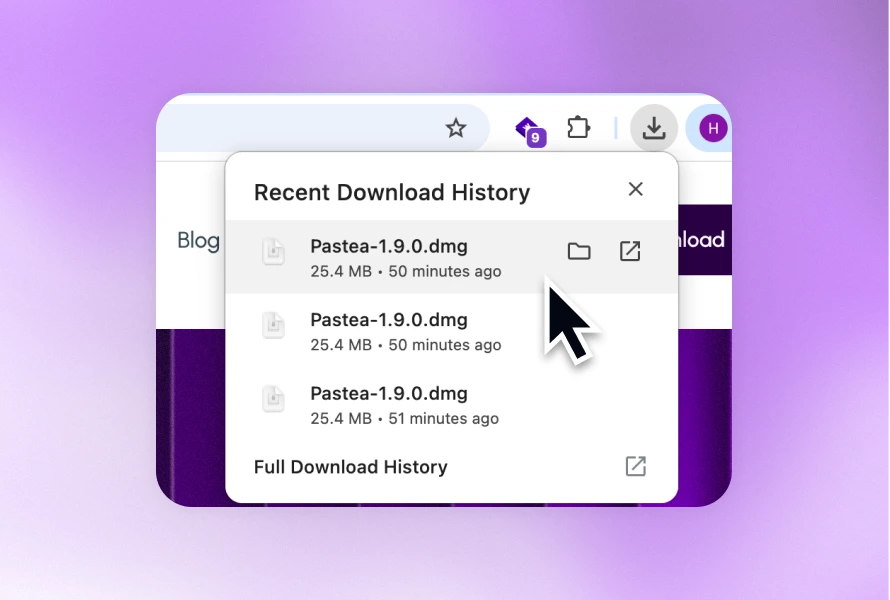
Step 1
Open the installer
Open Pastea.dmg from your Downloads folder
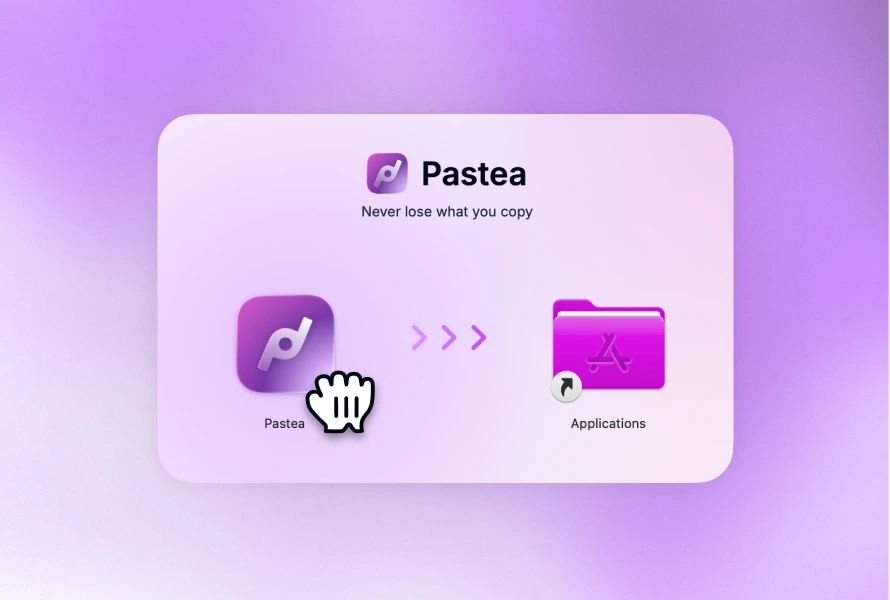
Step 2
Install Pastea
Drag Pastea app into your Applications folder.
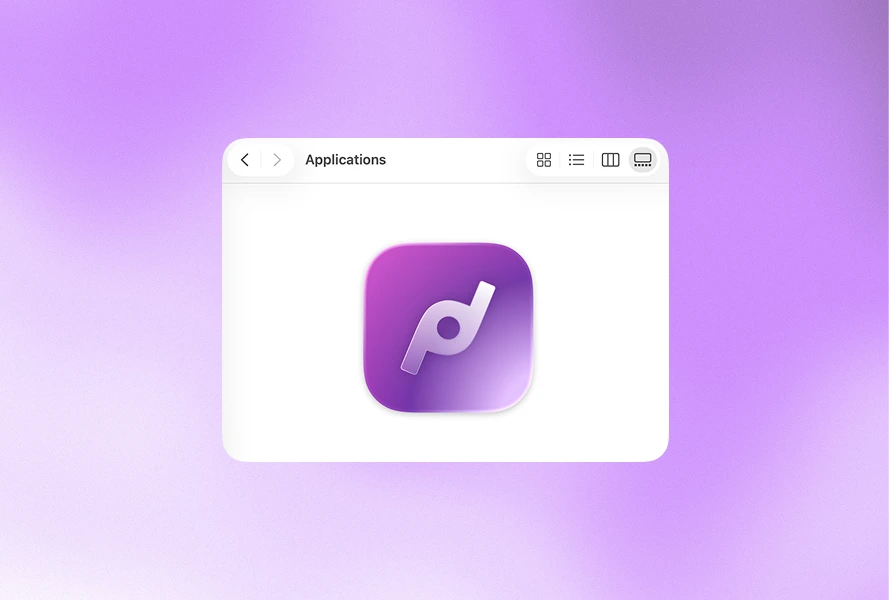
Step 3
Find Pastea
Open your Applications folder and search for Pastea.
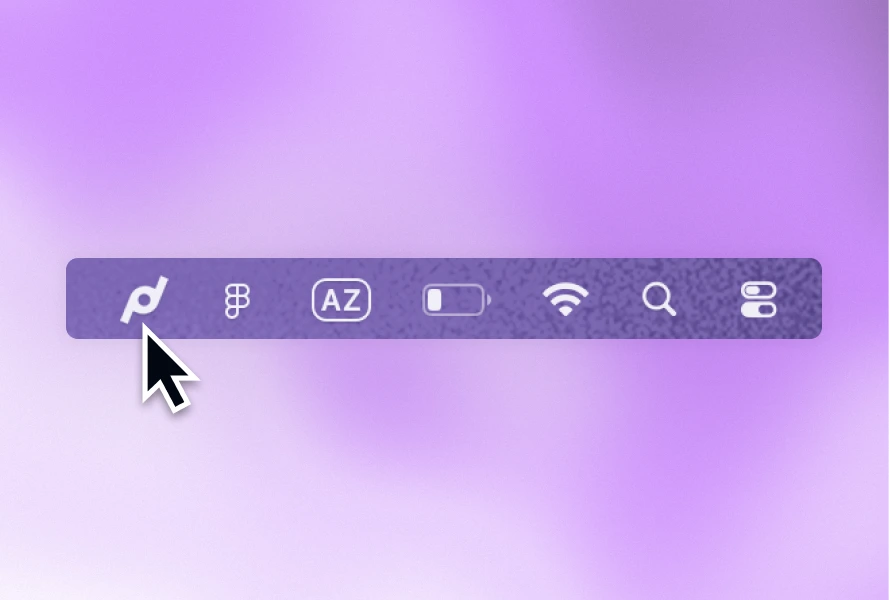
Step 4
Open Pastea
Click the Pastea icon in your Mac’s menu bar to open the app.