Help centre
How can we help?
Answers about Pastea on Mac, iPhone and iPad: saving and finding clips, privacy, access, and what to check when something is not working. If you do not find an answer here, email us and a person will reply.
Keyboard shortcuts
These shortcuts are for Pastea on Mac. Every one can be reassigned in Settings → Shortcuts. Open Pastea, Pause and Open Settings work from anywhere; Preview, Rename and New list work while the Pastea panel is open.
| Action | Shortcut |
|---|---|
| Show or hide the Pastea panel | ⇧ ⌘ V |
| Preview the selected clip | ⌘ P |
| Rename the selected clip | ⌘ R |
| New list | ⌘ L |
| Pause clipboard capture | ⇧ ⌘ P |
| Open Settings | ⇧ ⌘ S |
Getting started
Pastea keeps text, links, code, images and screenshots so you can search, pin and reuse them. The Mac app captures copies in the background. On iPhone and iPad, save from the Share menu or open Pastea after copying.
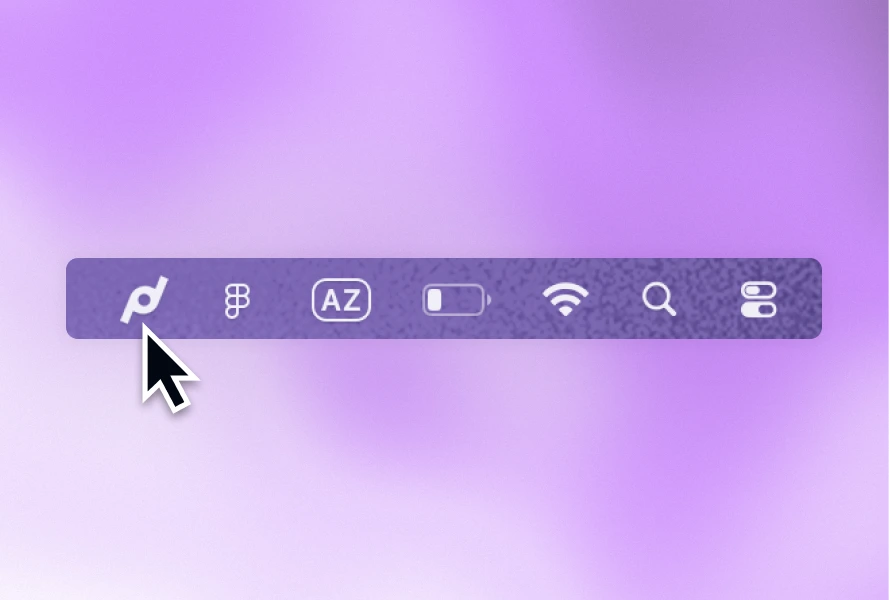
Press ⇧ ⌘ V to bring up the Pastea panel over whatever app you are in. Press it again to dismiss the panel. Pastea runs in the background and lives in your menu bar, so it does not need to be in the foreground to capture what you copy.
Pastea runs on macOS 15 or later. The iPhone and iPad app requires iOS or iPadOS 18 or later. The iPhone, iPad, and Mac App Store versions have been submitted to Apple for review and are not yet publicly available.
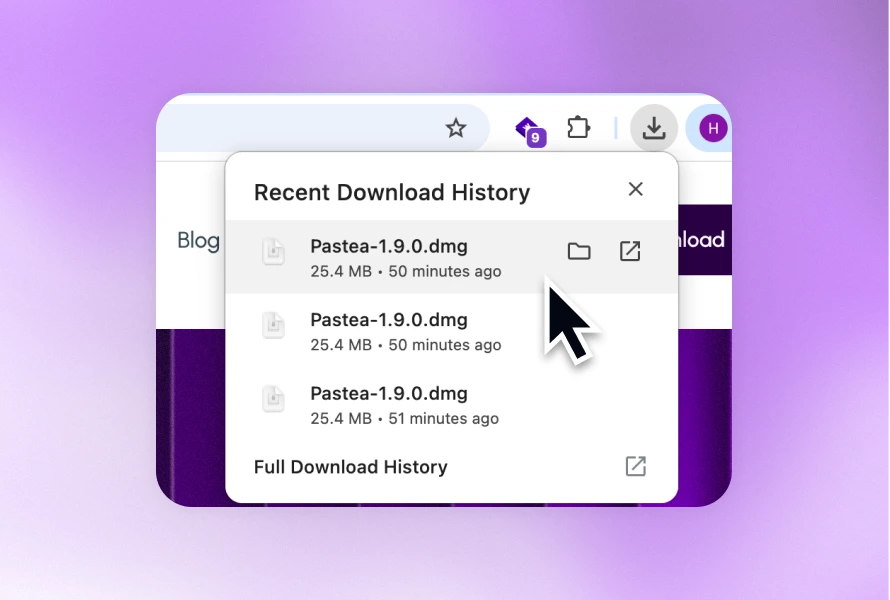
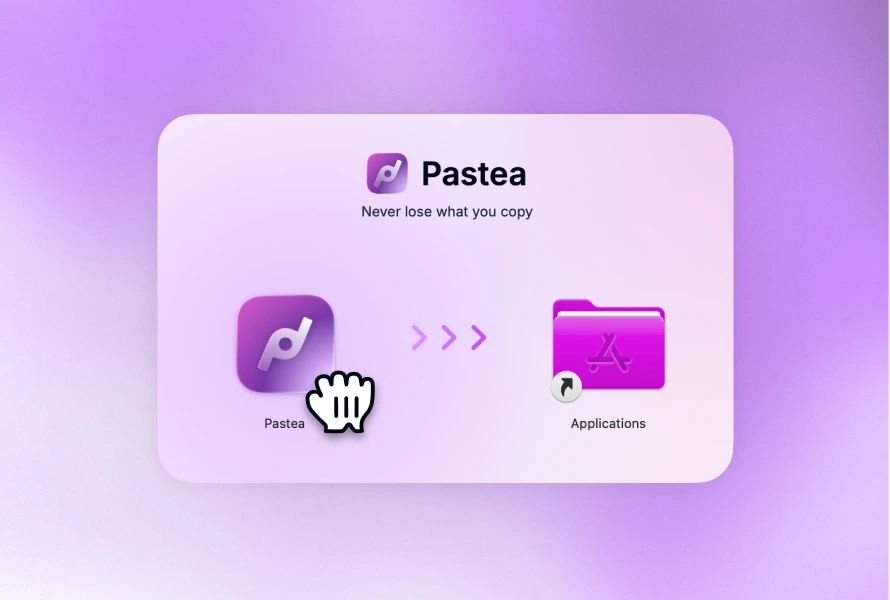
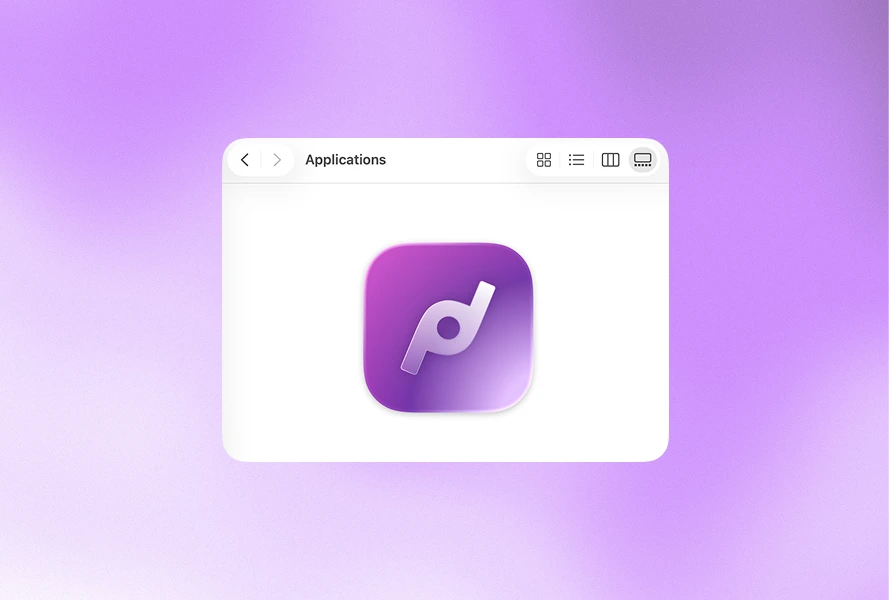
Download the direct Mac app from pastea.app. Invited iPhone and iPad testers can still install it through TestFlight. Once the App Store versions are approved and released, choose when to start seven days of full access through a free In-App Purchase with no automatic charge. Lifetime access is a separate one-time purchase with no subscription.
iPhone and iPad
Use the Share menu in another app and choose Copy to Clipboard History, or copy something and bring Pastea to the foreground. You can also create a text clip in Pastea. Pastea does not monitor every copy continuously while it runs in the background on iOS.
Open Pastea to find and copy a clip, then paste it in the other app. You can also enable the Pastea keyboard during setup to insert saved clips from the keyboard in other apps.
Pastea does not record every copy while it is in the background. Save the item with Copy to Clipboard History in the Share menu, or reopen Pastea after copying. If the trial has ended, the new clip may be saved but locked until Lifetime access is active.
The seven-day trial may have ended, or Pastea may still be checking access. After the trial, new clips continue to save, but history and keyboard access stay locked until Lifetime access is active. Pastea does not delete those clips. Open Settings → Pricing → Lifetime to see the one-time App Store purchase, or use Refresh Access if you have already bought Pastea.
Open Settings → Pricing → Lifetime in Pastea, then tap Restore Purchases. If access is still missing, use Refresh Access in Pricing and contact support with the device and app version. Do not send your Apple Account password.
Open the updated, activated Mac app once while online. Sign in to the same Apple Account on your Mac and iPhone, and turn on iCloud Keychain on both devices. Then open Pastea on iPhone and tap Settings → Pricing → Refresh Access. iCloud history sync is a separate, optional setting; you do not need to turn it on to share license access.
Everyday use
Open the panel and start typing, search runs across everything in your history. You can also narrow the list by source down the left side (History, Text, Code, Links, Images, Files, Screenshots), or open the filter control to restrict results by the app a clip came from, by date, or by length.
Pin it, or add it to a list. Items you pin or place in a list are kept beyond your normal retention period, so they aren't removed automatically when older history is cleared. Create a new list with ⌘ L.
Yes. Select it and press ⌘ R. A name makes a clip much easier to find later than its raw contents would.
Press ⇧ ⌘ P to pause capture. Nothing you copy while paused is added to your history. Press it again to resume. The menu at the bottom of the panel does the same, and can also pause for a fixed stretch, 15 minutes, 30 minutes, or 1, 4, or 8 hours. The menu bar icon shows a pause badge while capture is off. This is the quickest thing to reach for before working with credentials or client-confidential material.
Give a clip a short name like ;welcome and typing that name in any app replaces it with the clip, right-click a clip and choose Add Inline Shortcut to create one. Manage them in Settings → Inline shortcuts. They need the same Accessibility permission pasting does, and the keyboard is only watched while at least one shortcut exists, keystrokes are never stored.
Yes, through MCP. Turn on Settings → MCP & AI Tools → Enable MCP and click the tool you use: Claude Desktop installs a one-click extension, Cursor and VS Code open an install prompt, and the others get a snippet to paste. Each tool is approved individually and can be revoked there. A connected tool can search, read and re-copy your clips, never delete them, and never sees concealed items. The full walkthrough is in Connect AI tools.
Yes. Pastea reads the text in pictures on your Mac, nothing is sent anywhere, and that text becomes searchable like anything else you copied. Open a picture's preview to see what was read, or right-click it and choose Show Text or Copy Text.
Privacy and your data
Pastea stores clipboard history on your devices. If you turn on iCloud history sync, it also uses the private iCloud database in your Apple Account. Clipboard content is not stored on Pastea's servers. Full detail is in the Privacy Policy.
The default retention period is one month. Depending on your version, the options may include one day, one week, one month, three months, one year, or forever. On Mac, change it with the Clipboard history slider in Settings → General. On iPhone or iPad, open Settings → General → Clipboard History. Pinned items and anything in a list are kept regardless.
Yes. Turn on iCloud sync in Pastea's Sync settings on the devices you want to use. It is off by default. When enabled, history moves through your private iCloud database. This is separate from iCloud Keychain, which shares the credential used to recognize a Mac purchase on iPhone.
Password managers and similar apps mark what you copy as concealed. Pastea recognizes that signal: concealed items can be hidden in the interface, are never used to generate link previews, and can be excluded from your history entirely. No automatic system catches everything, though, a third-party app may simply fail to mark sensitive content correctly. If you routinely handle credentials, API keys, or confidential material, configure Pastea to exclude that content rather than relying on detection alone.
Yes. Pastea can ignore specific applications, so nothing copied inside them is captured, and it can ignore whole content types. Both are in Settings → Privacy. This is the right tool for a password manager, a banking app, or an internal tool you'd rather Pastea never saw.
Pastea checks access with its license service; Apple handles App Store purchases. The Mac app also checks for updates. Optional iCloud sync uses your Apple Account. Link previews may contact the copied link's site, and usage analytics and crash reports follow the switches in Privacy settings. Pastea does not send clipboard content to its license service. Link previews are never generated for concealed items or recognized sign-in and password-reset links, and you can turn them off in Settings → Privacy.
On Mac, open Pastea → Settings → Privacy. On iPhone or iPad, open Pastea's Settings → Privacy. Switch off Anonymous usage analytics or Crash reports separately. Core clipboard functionality is unaffected by either. These reports do not include clipboard content.
Permissions
Accessibility permission lets Pastea paste a clip straight into the app you were using, it performs the equivalent of pressing paste for you. It is not needed to store or search your history. Without it, Pastea can still put the item on your clipboard and you paste it yourself. You can grant or revoke it any time in System Settings → Privacy & Security → Accessibility.
Only if you turn on saved-screenshot capture. That feature watches the folder macOS saves screenshots into, so shots appear in Pastea without you copying them first. Screenshots you copy to the clipboard directly need no folder access. You can disable folder capture in Pastea's settings or in macOS privacy controls.
Troubleshooting
This is almost always Accessibility permission. Check System Settings → Privacy & Security → Accessibility and confirm Pastea is listed and switched on. If you granted it and it still doesn't work, toggle Pastea off and on in that list, macOS occasionally holds a stale permission after an app updates.
Work through these in order: Capture may be paused, press ⇧ ⌘ P to resume. The app you copied from may be on your ignored list. Check Settings → Privacy. That content type may be excluded, for the same reason. The item may have been marked concealed by the app you copied it from, and you may have chosen not to save concealed items.
Check the Clipboard history slider in Settings → General, anything older than that window is cleared automatically. The default is one month. To keep something indefinitely, pin it or add it to a list before it ages out.
Pastea checks daily and installs updates on its own, in the background. To check right now, use Check for Updates… in the menu bar icon's menu, or Settings → Updates, that page also shows the version you're running. Update checks never transmit your clipboard history.
Plans and billing
In the App Store versions, you choose when to start seven days of full access through a free In-App Purchase. It does not renew or charge you automatically. Lifetime access is one separate payment. The direct Mac checkout and the App Store purchase sheet each show their price before you buy.
In the App Store versions, new clips keep saving, but history, search, and paste access are locked until Lifetime access is active. Nothing is deleted. In the direct-download Mac version, capture and pasting pause when the trial ends; your existing history remains on your Mac. Activating Lifetime access restores use.
The license covers the personal Macs you own, there is no fixed device cap. Activate with the license key from your receipt, and manage activations in Settings → Subscription, which also has a Deactivate this Mac button for machines you're retiring.
Still stuck? Get in touch and tell us which device you use, its operating-system version, your Pastea version, and what happened.