Collect inspiration
Save ideas as fast as you find them
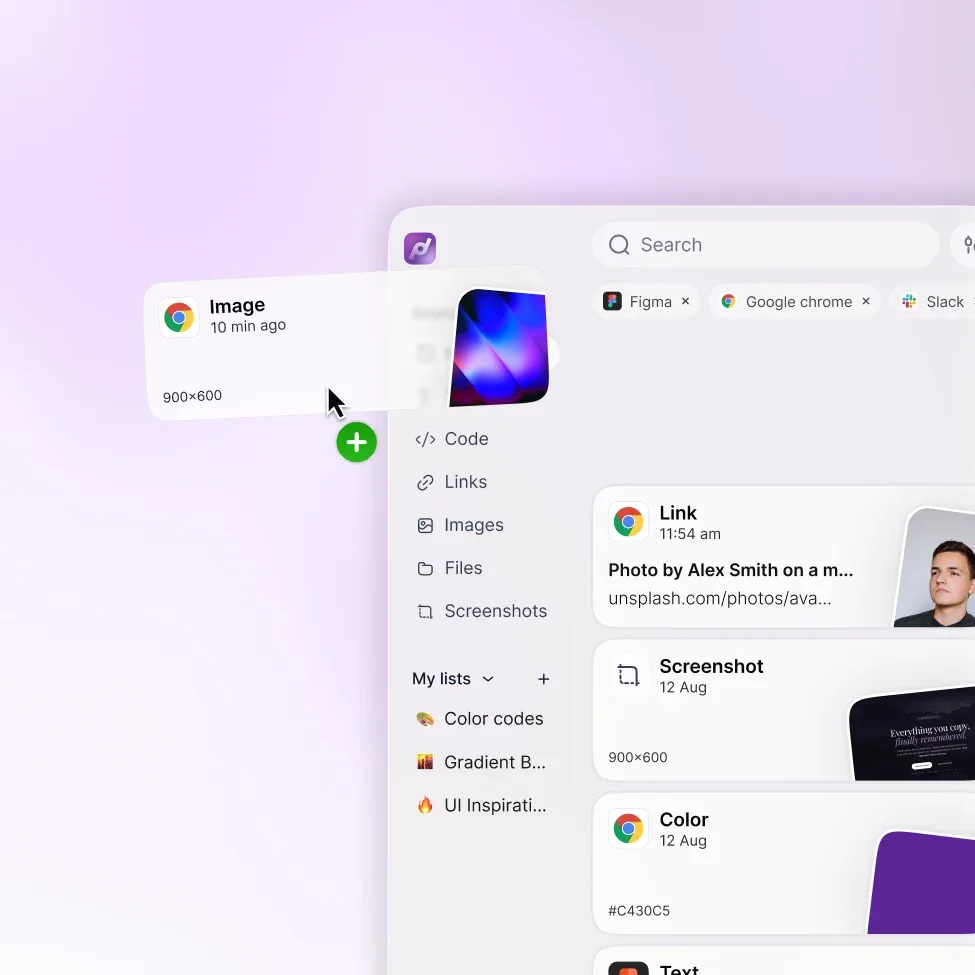
Copy a color, screenshot, reference, headline, image, or link and keep moving. Pastea captures what matters without making you stop to organize it first.
Pastea for Designers
Collect screenshots, colors, links, copy, and files while you work. Pastea keeps everything you copy easy to find and ready to reuse without pulling you away from your design.
Starts with a 7-day free trial, no credit card required.
Collect inspiration
Copy a color, screenshot, reference, headline, image, or link and keep moving. Pastea captures what matters without making you stop to organize it first.
Project collections
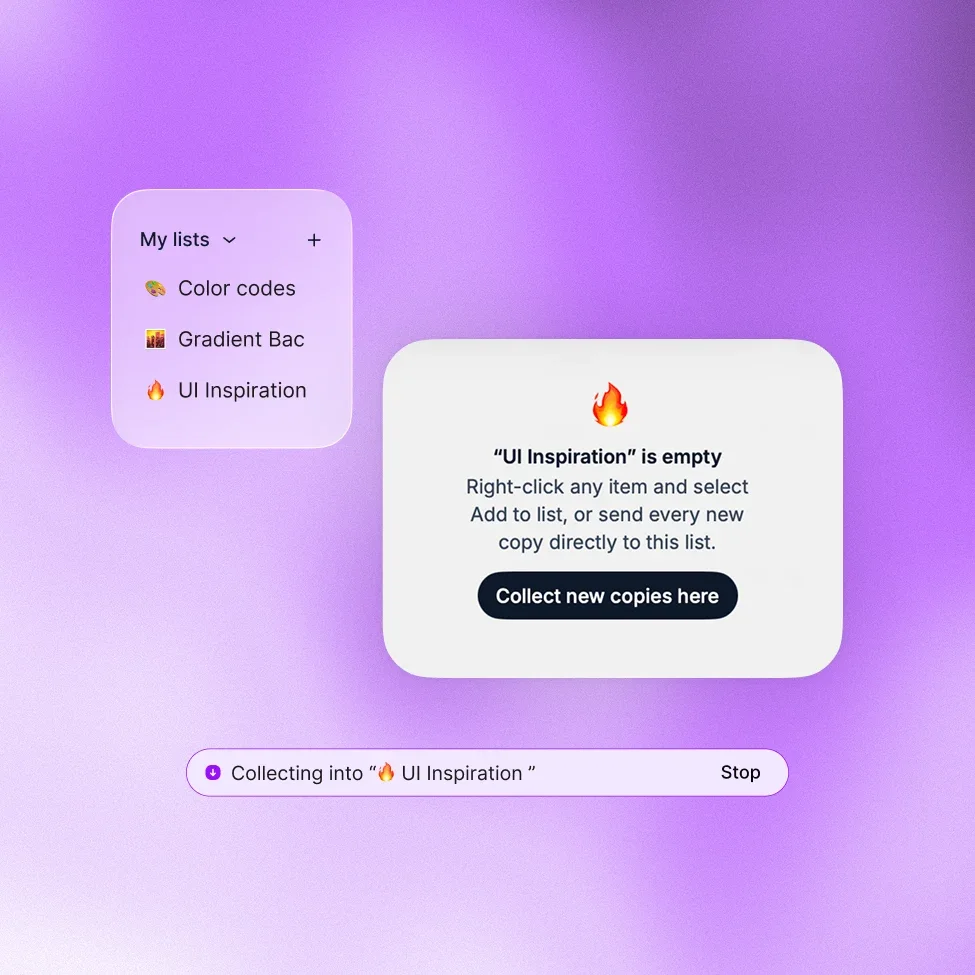
Create a dedicated list and choose Collect new copies here. Everything you copy while exploring references can go directly into that project instead of getting mixed with unrelated clipboard history.
Find anything again
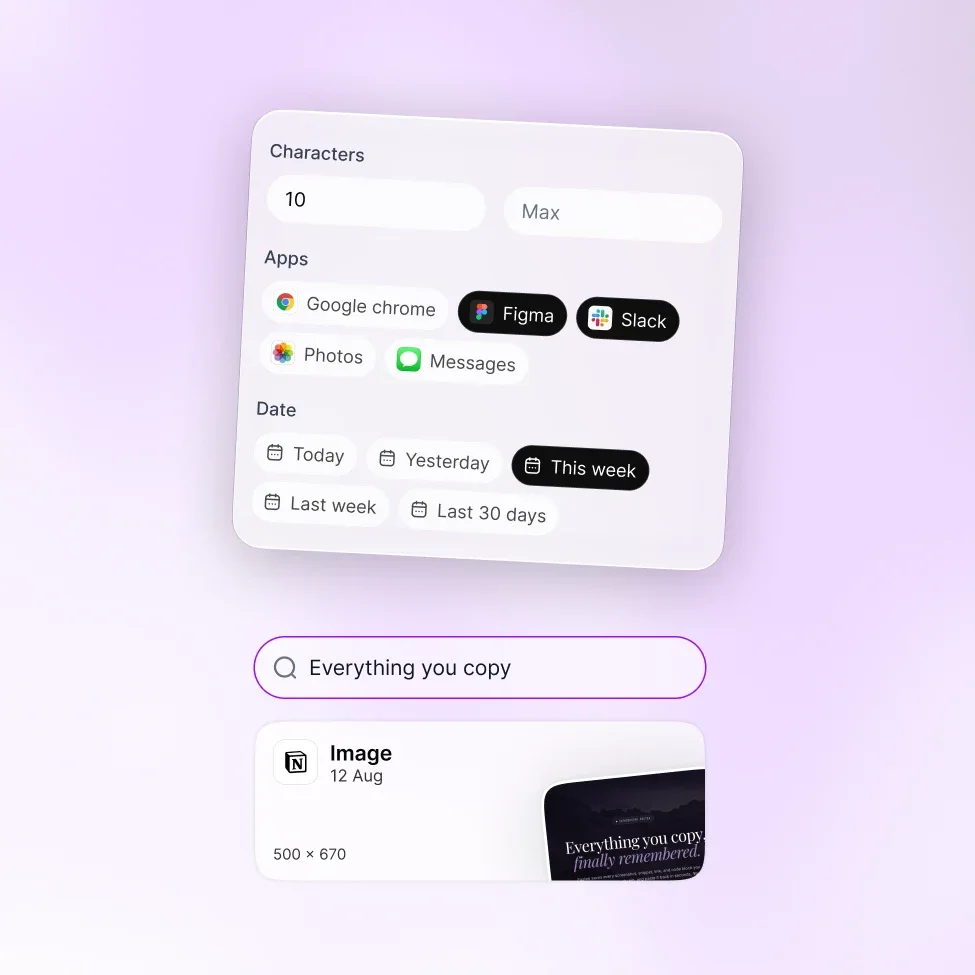
Search your clipboard history and filter by app, content type, date, or other details to quickly get back to an image, color, link, or piece of copy you remember using.
Quick access
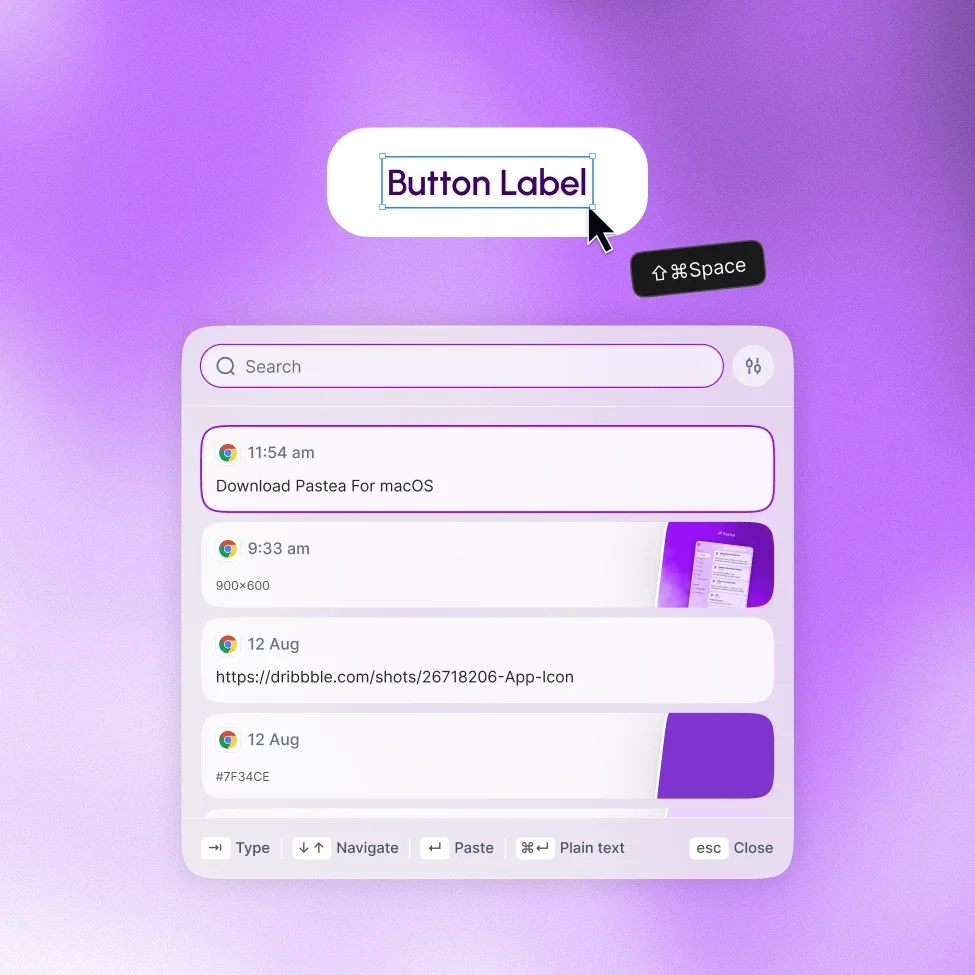
Open Pastea Quick View right by your cursor and grab what you need without repeatedly jumping between apps, folders, and browser tabs.
Reuse
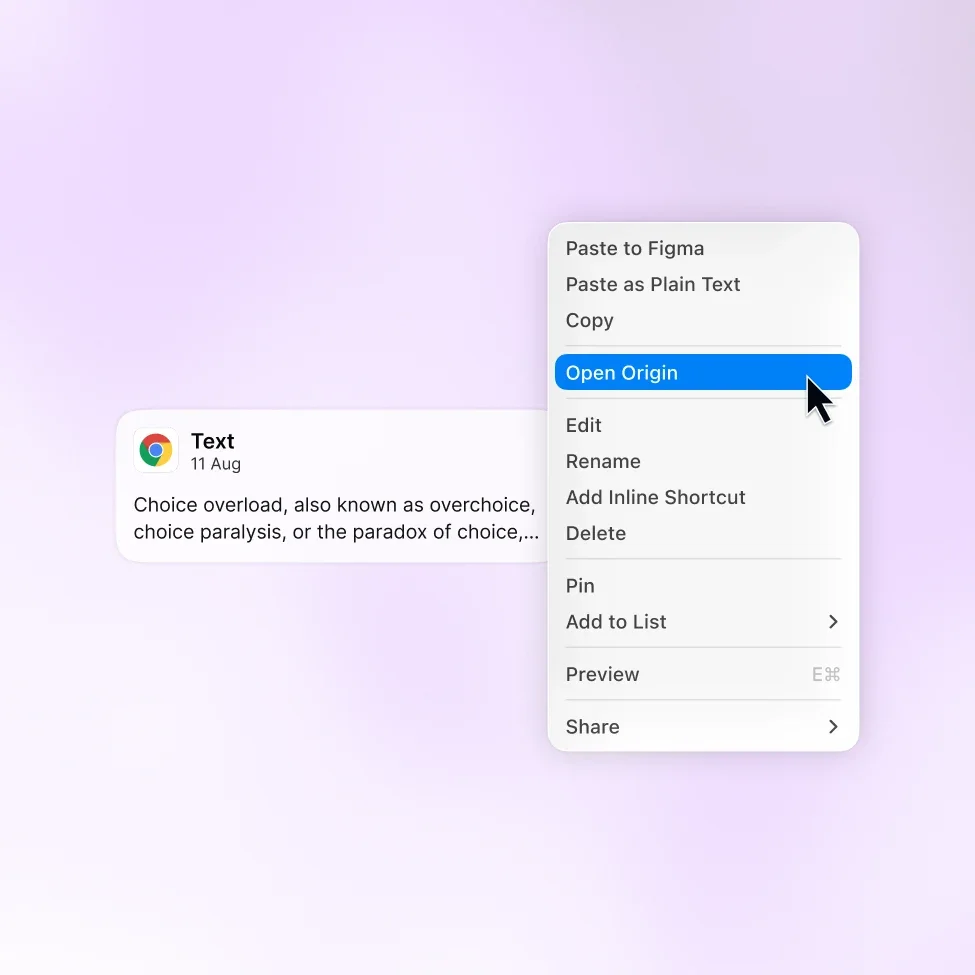
Reuse previous colors, copy, assets, files, and references across your designs. And when you need more context, Open Origin takes you back to where an item came from.
Sequence Paste
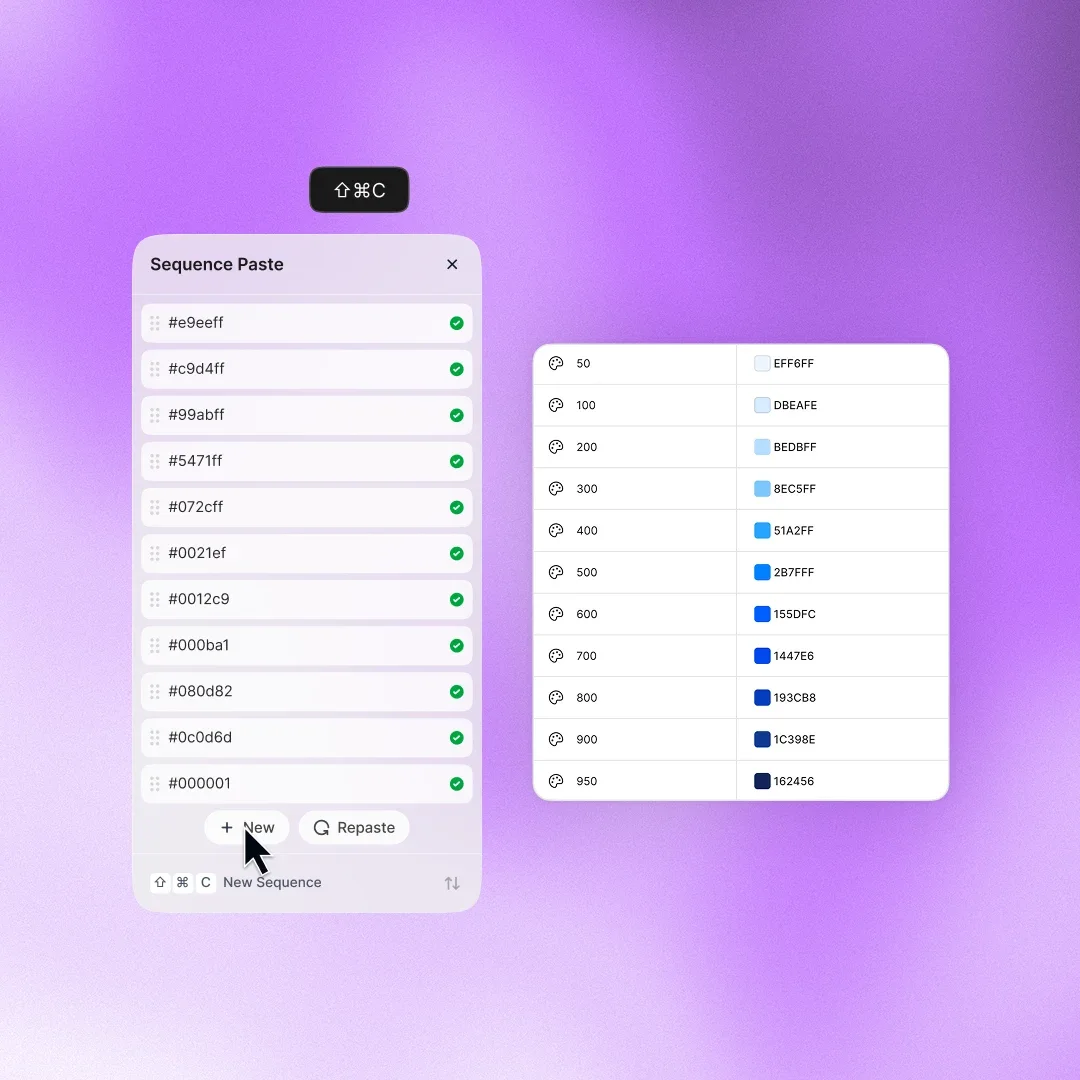
Creating color variables in Figma usually means jumping back and forth to copy each value individually.
With Sequence Paste, copy your color values once, then paste them into Figma one after another in the same order.
Get a second opinion
Tell ChatGPT how you work and see where Pastea could fit into your workflow.
FAQs
Yes. Pastea works alongside Figma and other Mac apps. You can quickly reuse copied colors, text, links, files, and other design material without needing a dedicated Figma plugin.
Sequence Paste is useful when you need to enter several values one after another. For example, you can copy an entire color scale and then paste each value into Figma Variables in sequence instead of switching back to copy every hex code individually.
Yes. Pastea automatically keeps the colors you copy, making it easy to bring back hex values, color scales, and other design tokens while building or updating a design system.
Yes. You can create a list for a client, product, moodboard, or design project and collect references directly into it while you browse. That keeps project inspiration separate from unrelated clipboard activity.
You can use Open Origin to return to where a copied item originally came from. This is useful when you find an old piece of copy, reference, or asset in Pastea but need to see the surrounding page or project again.
Yes. Pastea keeps what you copy available across your Mac, so moving text, colors, references, links, and files between tools is faster and requires less back-and-forth.
Yes. It can fit branding, graphic design, web design, motion, marketing design, and other creative workflows where you regularly collect inspiration and reuse visual or text-based assets.
Keep the references and assets you use every day within reach.
Download Pastea for macOSStarts with a 7-day free trial, no credit card required.
Step 1
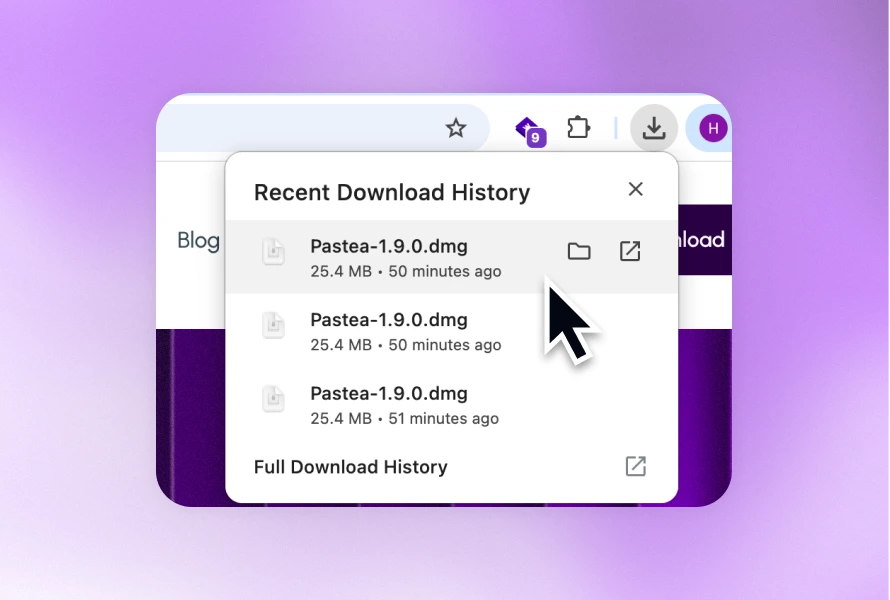
Open Pastea.dmg from your Downloads folder
Step 2
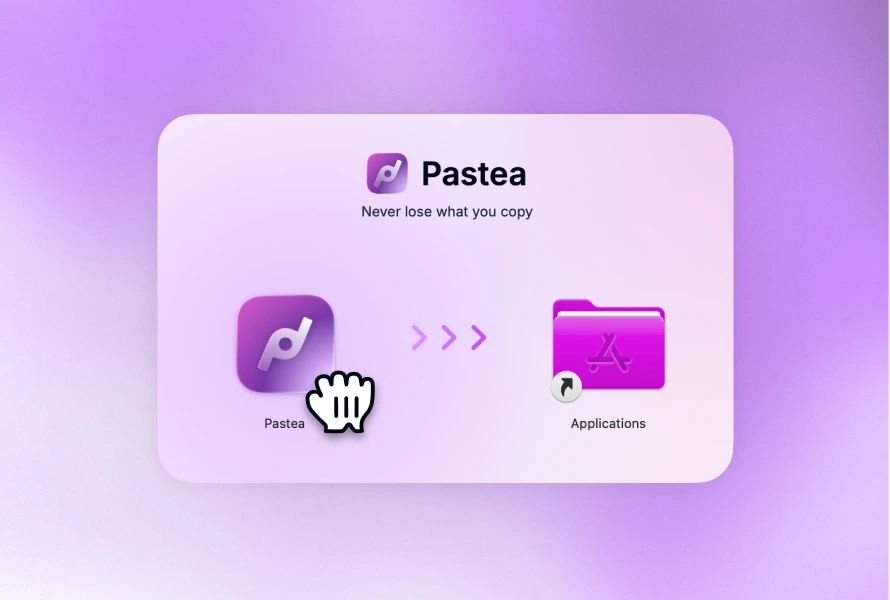
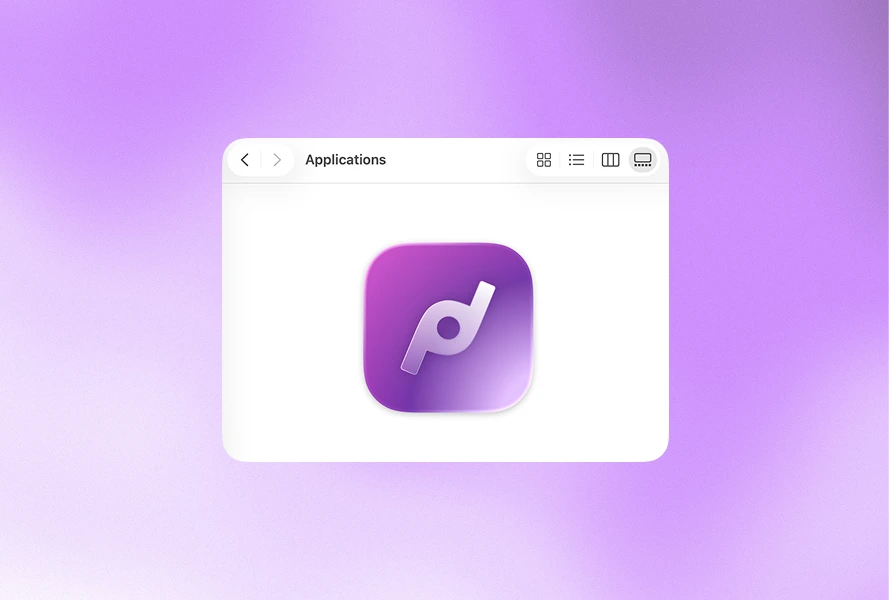
Drag Pastea app into your Applications folder.
Step 3
Open your Applications folder and search for Pastea.
Step 4
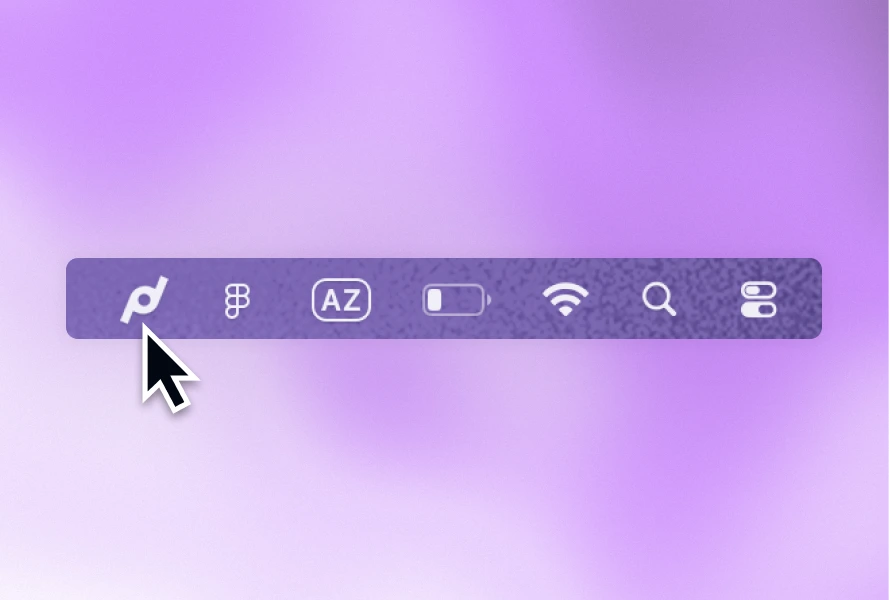
Click the Pastea icon in your Mac’s menu bar to open the app.