Clipboard History on Mac: How to View and Use It (2026)

Your Mac does have clipboard history if it runs macOS Tahoe 26 or later. Press Command-Space to open Spotlight, then press Command-4 to see and search recent things you copied.
On macOS Sequoia 15 or earlier, the built-in clipboard still holds only the current item. You can inspect that item in Finder, but you need a clipboard manager if you want to recover earlier copies.
Here is how both versions work, what can still be recovered, and when Spotlight's free history is enough.
If you have already overwritten a copy and need it back, start with our clipboard recovery steps. They separate recorded history from Undo and source recovery.
The short answer
| Your Mac | What clipboard history is available? | Fastest method |
|---|---|---|
| macOS Tahoe 26 or later | Searchable recent clipboard history in Spotlight | Press Command-Space, then Command-4 |
| macOS Sequoia 15 or earlier | No built-in history; Finder can show the current clipboard item | Open Finder and choose Edit → Show Clipboard |
| Any supported version with a clipboard manager | Longer, searchable history with features that depend on the app | Use the app's shortcut; Pastea uses Shift-Command-V by default |
If you only occasionally need the thing you copied two minutes ago, start with Spotlight. It is already on the Mac and costs nothing. Add a dedicated clipboard manager when you need longer retention, pins, organization, screenshot search, or more control over what gets recorded.
How to open clipboard history on Mac
Apple added clipboard history to Spotlight in macOS Tahoe. The shortcut is a sequence, not one four-key chord:
- Press
Command-Spaceto open Spotlight. - Press
Command-4, or click the Clipboard button beside the search field. - Click Enable if Spotlight asks the first time.
- Type a word or phrase to search your recent copies.
- Select an item and press
Command-C, or click its Copy button. - Return to the destination and press
Command-V.
Apple's current Mac guide documents the same workflow for searching, copying, and clearing clipboard history.
If the Clipboard button is missing
First check your macOS version:
- Open the Apple menu.
- Choose About This Mac.
- Look for macOS Tahoe 26 or later.
If you are already on Tahoe, open System Settings → Spotlight and turn on Clipboard Search. Apple keeps the switch separate because clipboard history can contain private material.
If you are on Sequoia or earlier, the feature is not hidden behind a setting. That version of macOS simply does not include Spotlight clipboard history.
How to clear Mac clipboard history
Open Spotlight, switch to Clipboard with Command-4, click the More button beside the search field, and choose Clear History.
Clearing history is useful before someone else uses your Mac or after you have copied sensitive information. It cannot be undone.
Spotlight's control does not necessarily empty the item currently waiting behind Command-V or delete a third-party app's database. Our guide to clearing the clipboard on Mac covers all three stores.
What Spotlight clipboard history can do
Apple says clipboard history in macOS Tahoe or later can browse recently copied text, images, links, and files. You can search the list, copy an older item back to the active clipboard, and clear the history.
That covers the most common failure:
You copied a terminal command, copied a file path to add to it, and accidentally replaced the command.
Open Spotlight, search for part of the command, copy it again, and continue.
The important word is recent. Apple's public documentation does not promise that Spotlight is a permanent archive or guarantee a fixed item count. Its guide documents search, copying, and clearing, but it does not document pins, lists, custom retention, per-app exclusions, or a synced history across devices.
That is not a criticism. A built-in feature should be small. Spotlight is a good answer when your problem is occasional recovery rather than maintaining a reusable library.
How to view the clipboard on macOS Sequoia or earlier
On older versions of macOS, open Finder and choose Edit → Show Clipboard. A small window displays the item currently waiting to be pasted.
This can confirm that Command-C worked. It cannot show what was on the clipboard five minutes ago. Copy something new and the previous item is replaced.
The same distinction applies to pbpaste in Terminal. It can print the current text clipboard, but it is not a hidden clipboard-history command.
Can you recover clipboard history after copying something else?
It depends on what was recording at the time.
- Tahoe clipboard history was enabled: Open Spotlight and search the recent history. The item may still be there.
- A clipboard manager was already running: Search that app's history.
- Neither was recording: Installing an app afterward cannot reconstruct earlier clipboard contents.
Before giving up, return to the source. An editor may still have the text in Undo. A browser can reopen the page from history. A chat or email draft may retain what you typed. A saved screenshot may still be on the Desktop or in your screenshots folder.
Clipboard history is preventive. It starts helping after you turn it on, not before.
Is Spotlight clipboard history enough?
For many people, yes.
Use the built-in option when:
- you run macOS Tahoe or later;
- you only need to recover recent copies;
- basic text search is enough;
- you do not want another menu-bar app;
- you are comfortable clearing history manually when necessary.
Use it for a week before installing anything else. If you stop losing clips, the problem is solved.
A dedicated clipboard manager becomes useful when the history itself turns into a working tool. That usually means you want to keep material longer, find it with better filters, or turn useful copies into reusable assets.
Spotlight vs a dedicated Mac clipboard manager
The question is no longer whether macOS has clipboard history. It does. The question is whether recent recall is enough for your workflow.
| Need | Spotlight in macOS Tahoe | Pastea |
|---|---|---|
| No-install recent history | Yes | Requires an app |
| Default shortcut | Command-Space, then Command-4 | Shift-Command-V |
| macOS support | Tahoe 26 or later | macOS 15 or later |
| Search | Search recent clipboard contents | Search content and narrow by type, source app, date, or length |
| Retention | Recent history; not documented as a permanent archive | One month by default; configurable from one day to forever |
| Keep important items | No pins or lists documented | Pins, names, and lists; pinned and listed clips survive normal cleanup |
| Images and screenshots | Browse copied images | Store images and screenshots and search text recognized inside them |
| Privacy controls | Enable or disable Clipboard Search; clear the full history | Pause capture, ignore apps or content types, and exclude concealed items |
| Across Macs | No full history sync documented | Optional sync through your private iCloud database |
| Cost | Included with macOS | Paid after a seven-day trial |
We build Pastea, so we are not neutral about dedicated clipboard apps. But Spotlight should still be your first test on Tahoe. Pastea becomes the better fit when you can name a limitation you have actually reached.
Add longer, searchable clipboard history with Pastea
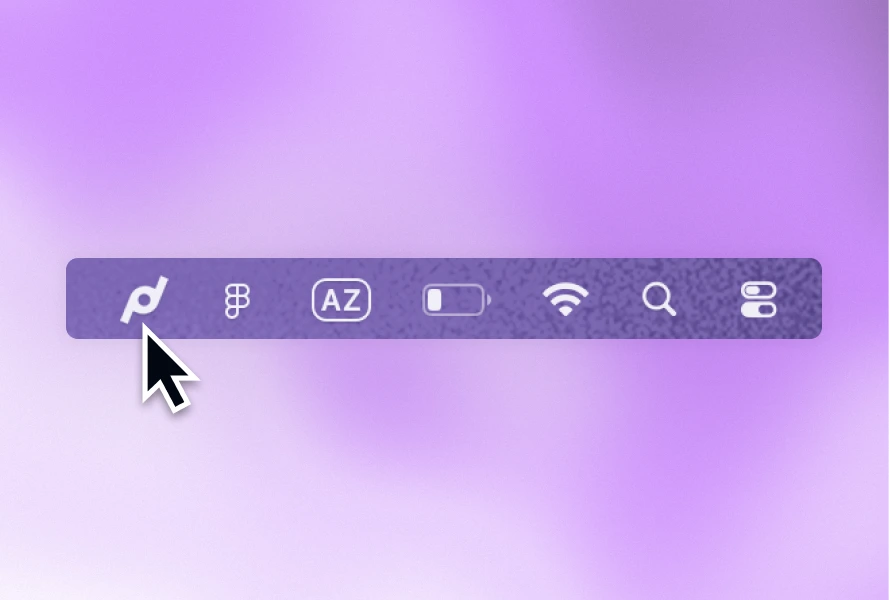
Pastea runs in the menu bar and records supported text, code, links, images, screenshots, colors, and files as you copy them.
The basic workflow is short:
- Press
Shift-Command-Vfrom any app. - Start typing what you remember.
- Narrow the results by type, source app, date, or another available filter.
- Select a clip and press Return to paste it back.
Without Accessibility permission, Pastea can still copy the selected item back to the system clipboard. You then press Command-V yourself. The permission is for automatic pasting, not for storing or searching history.
The longer history changes what you can search for. A recent error message is simple. So is the tracking number from last week, the Figma link from Tuesday, or the command you copied during the last release.
For images, Pastea recognizes text on the Mac so copied screenshots become searchable. If you remember one word from an error dialog, you can search for that word instead of browsing thumbnails. See the separate guide to extracting and searching text from screenshots on Mac.
Turn useful history into reusable material
Some clips are not old mistakes. They are things you expect to use again: an address, a support reply, a code fragment, a scheduling link, or a standard introduction.
Pastea lets you pin those items or place them in lists. You can also give a clip an Inline Shortcut, such as ;address, and type the shortcut wherever the full content should appear.
That is the practical boundary between history and a library:
- history helps you recover something you copied;
- pins and lists keep the useful parts;
- shortcuts remove the need to search for recurring material at all.
If all you want is a lightweight list, compare the options in our guide to the best clipboard managers for Mac. A smaller free utility may be enough.
Treat clipboard history as sensitive data
A history can contain private messages, customer information, access tokens, reset links, and anything else you copy. Apple explicitly warns that sensitive information may appear when you enable Spotlight's clipboard feature.
Whichever method you use:
- clear the history before handing an unlocked Mac to someone else;
- avoid recording password-manager and banking apps;
- keep only as much history as you genuinely use;
- pause recording before handling confidential material;
- understand whether sync is on and where synced data is stored.
Pastea stores clipboard history locally on your devices. On Mac, you can ignore specific apps or entire content types, pause capture, and exclude items marked concealed by password managers. Optional iCloud sync can share saved history across your Macs, iPhones, and iPads through your private iCloud database, and is off by default. Our clipboard privacy guide explains each boundary, including link previews and screenshot OCR.
No automatic secret detection is perfect. If an app does not mark copied content as concealed, a clipboard manager cannot reliably guess that it is sensitive. An explicit ignore rule is safer.
Universal Clipboard is not clipboard history
Universal Clipboard lets nearby Apple devices share the current copied item. Copy a URL on your Mac and you can paste it on your iPhone. Apple says the item remains available briefly or until another copy replaces it.
It does not give your iPhone a browsable list of the Mac's past copies, and it does not turn Spotlight's history into a shared archive.
Pastea's iPhone and iPad app is available on the App Store. With optional iCloud sync enabled, it gives you access to saved history from your Mac. On mobile, save from the Share menu or open Pastea after copying; use search or the Pastea keyboard to retrieve a saved clip. iOS capture does not run continuously in the background.
Mac clipboard history FAQ
What is the clipboard-history shortcut on Mac?
On macOS Tahoe 26 or later, press Command-Space to open Spotlight and then Command-4 to switch to Clipboard. In Pastea, the default shortcut is Shift-Command-V.
Does macOS save everything I copy?
No. Tahoe keeps searchable recent clipboard history when Clipboard Search is enabled. Apple does not describe it as a permanent archive. Sequoia and earlier expose only the current clipboard item unless another app records history.
Where is the clipboard on a Mac?
To inspect the current item, open Finder and choose Edit → Show Clipboard. On Tahoe or later, use Spotlight for recent history.
Can I recover clipboard history after restarting my Mac?
Do not assume the built-in history is permanent. If the item matters, save it somewhere durable or use a clipboard manager with a retention policy you control.
Can I sync clipboard history between a Mac and iPhone?
Yes. Pastea has Mac, iPhone, and iPad apps with optional private iCloud history sync. Enable sync in Pastea on each device using the same Apple Account. Apple's Universal Clipboard is a separate feature that transfers the current item briefly rather than providing a browsable multi-item history.
Start with the built-in feature
If your Mac runs Tahoe, turn on Spotlight Clipboard Search before installing anything. It may be all you need.
If you later want a longer history, searchable screenshots, pins, lists, app exclusions, or saved history across your Apple devices, try Pastea on Mac for seven days with no credit card. The next time you copy over something important, you will know exactly where to find it.