How to Recover Overwritten Clipboard Text on Mac

You copied a paragraph, copied a link, then went back to paste the paragraph. The link appears instead.
You can recover the earlier copy if something recorded it, or if the original still exists. On macOS Tahoe or later, check Spotlight Clipboard history. If a clipboard manager was already running, search that too. Otherwise, return to the source or try Undo if you cut or deleted the text.
Installing a history app now will help with future copies. It cannot go back and record the one you lost.
Start with the kind of loss
Before copying more text or restarting anything, identify what happened.
| What happened | First place to look | What you are recovering |
|---|---|---|
| You copied something else | Previously recorded clipboard history | An earlier clipboard entry |
| You cut text and cannot paste it | Undo in the source document | The original text in its document |
| You deleted or replaced text while editing | Undo or the document's version history | An edit, rather than a copy |
| You copied from a webpage or message | The original tab, conversation, or browsing history | The source material |
| You copied on another Apple device | The source device or app | Content that may still exist there |
If the missing paragraph was cut from your only copy of a document, start with the source. Do not restart the pasteboard service while the clipboard might hold something valuable. If this is a paste failure rather than an overwritten copy, follow our copy-and-paste troubleshooting guide.
Check Spotlight Clipboard history
Apple provides clipboard history in macOS Tahoe or later. This matters because older advice often says a Mac has no built-in history at all. That is no longer a useful blanket statement.
- Press ⌘Space to open Spotlight.
- Press ⌘4 to open Clipboard history.
- Search for a distinctive word from the missing text.
- Select the matching item and press ⌘C.
- Return to your document and press ⌘V.
Apple documents this process in its Spotlight clipboard guide. If Spotlight asks you to allow clipboard results for the first time, enabling it now does not establish that the lost item was recorded earlier.
Search for an unusual noun, part of a URL, or a recognizable phrase. A common word such as “meeting” can bury the useful result under unrelated copies. If you are unsure which version of macOS you use, choose Apple menu → About This Mac.
Our broader Mac clipboard history guide covers setup and everyday use. Here, the important question is whether the particular missing copy is present.
Search the clipboard app that was already running
If you use Pastea, Raycast, or another clipboard manager, check its own history. Separate apps maintain separate collections; an empty Spotlight result does not tell you whether another app captured the item.
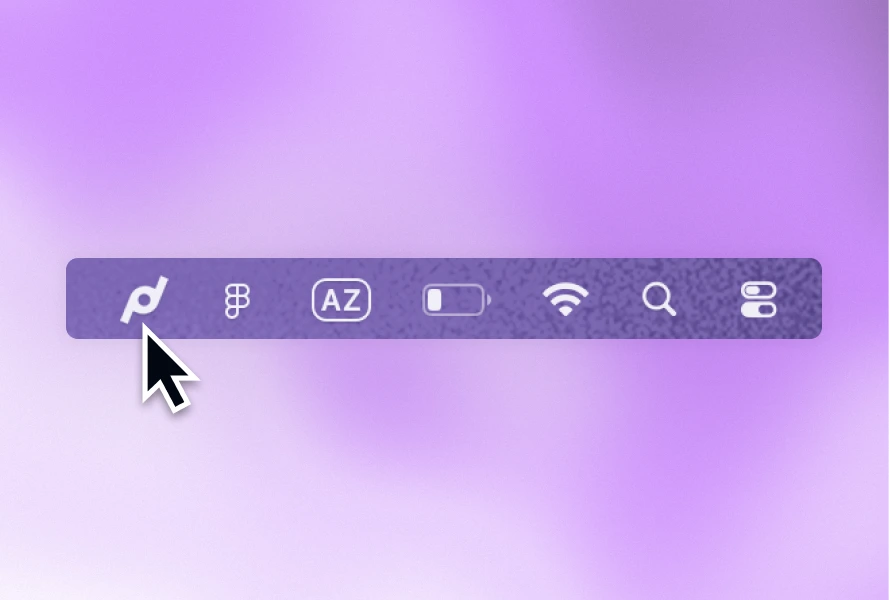
In Pastea, open the panel and search for a fragment of the text. If you remember the source, use the app filter to narrow the results. The current controls are described in Pastea Help.
Try clues in this order:
- An unusual word from the content.
- A domain, identifier, or filename.
- The app you copied from and the approximate date.
For example, you copied a deployment command, then a folder path. Searching for the project's unusual name is more useful than searching for “command.” Once you find it, check the complete entry before using it. Two similar commands may target different environments.
If an expected item is missing, consider whether capture was paused, the source was excluded, or the entry aged out. A history app's absence of a result is not proof that your search is wrong.
Return to the original source
Clipboard recovery gets most of the attention. Reopening the source is often more reliable.
For a webpage, check the still-open tab or browser history. For a message, search the conversation. For code, look in the editor or repository. For a command, inspect the Terminal window or shell history if it was actually entered there. Copying a command from a webpage does not automatically add it to shell history.
For text from a screenshot, find the saved screenshot and extract its text again. Read back numbers, punctuation, and file paths before trusting OCR output.
This approach can also recover context the clipboard never held: the paragraph around a quote, the date of a message, or the explanation beside a code sample.
Does Command-Z undo copying?
Treat Undo as a way to reverse document edits, not as a universal clipboard rewind.
If you cut a paragraph, return to that document and try ⌘Z. If you deleted text after copying it, Undo may restore the deletion. Save the recovered text before trying other fixes. Apple's copy-and-paste instructions explain the distinction between Copy, Cut, Paste, and Undo.
If you merely copied a paragraph and then copied a link, there may be no document edit to undo. Repeatedly pressing ⌘Z in an unrelated document can undo work without bringing the earlier clipboard entry back.
What if no history contains it?
If the current clipboard was replaced, no history recorded the earlier copy, and the source no longer exists, there is no dependable general-purpose recovery procedure we can recommend.
pbpaste reads the current pasteboard; it is not an archive of earlier copies. Restarting pboard addresses some clipboard failures, not lost history. Neither command reconstructs the missing paragraph.
A document backup may contain the original text if it was saved there. That is different from restoring an unsaved copy operation. Check the application's version history or your document backups for the source, rather than assuming a backup includes every clipboard change.
Make the next recovery easier
Choose one history tool, confirm it records harmless test copies, and set retention deliberately. Keep important material in a document, repository, or password manager rather than relying on clipboard history as its only home.
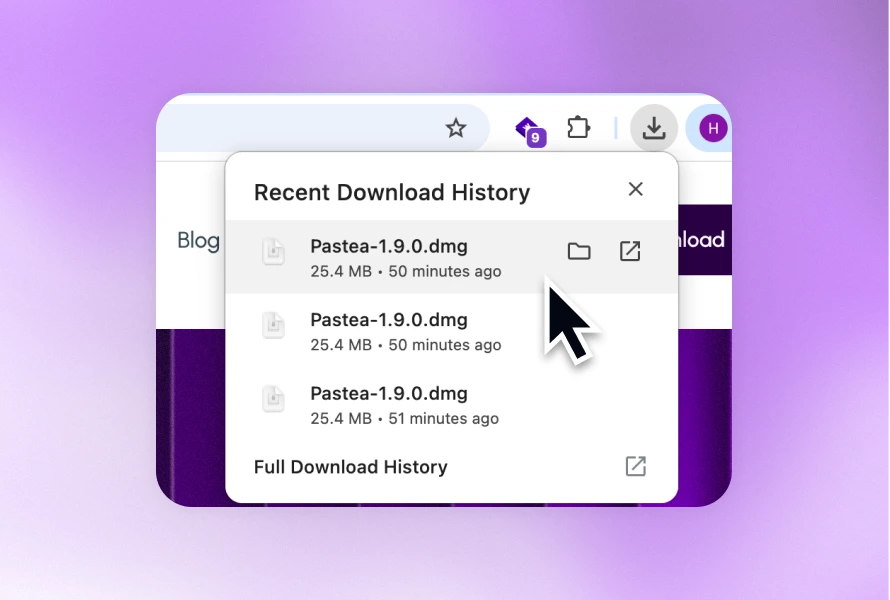
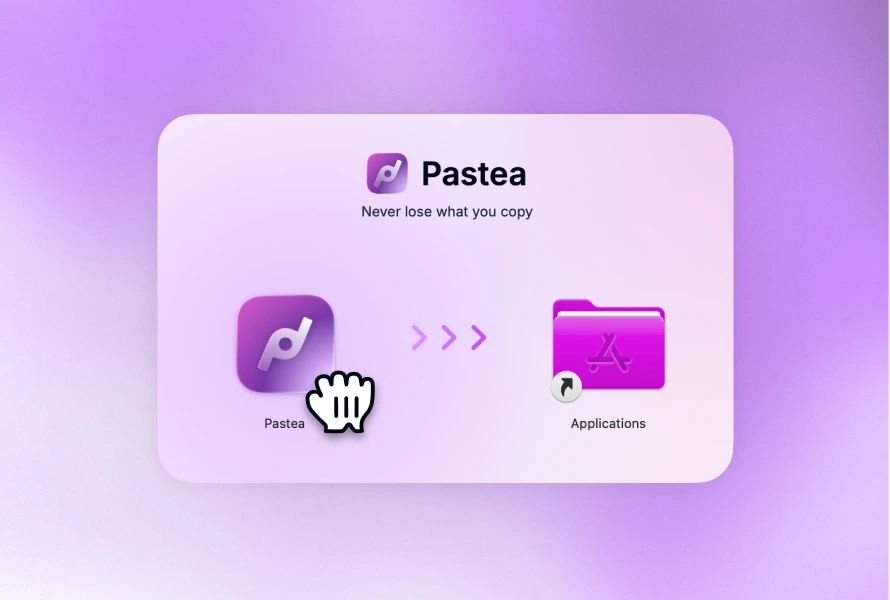
We build Pastea for the everyday version of this problem: the thing you need is the thing you copied a few minutes ago. It keeps a searchable history and lets you pin useful entries. If that happens often, download Pastea for Mac and test the workflow with ordinary text before trusting it with important work.