Copy and Paste Not Working on Mac? 8 Fixes

If copy and paste stopped working on your Mac, do not start by killing random processes.
First work out whether the failure affects one app, every app, only the keyboard shortcut, or only copying between Apple devices. The fixes are different, and resetting the clipboard can destroy the item you were trying to rescue.
Use this order:
- Undo any cut you have not pasted yet.
- Test a fresh copy in TextEdit.
- Try the Edit menu instead of the keyboard.
- Quit and reopen the affected app.
- Restart the Mac clipboard service only if copying fails everywhere.
- Troubleshoot Universal Clipboard separately if the problem is between devices.
Before troubleshooting: protect anything you cut
Command-X removes selected text from an editable document and puts it on the clipboard. If Paste then fails, restarting the clipboard service may remove the only remaining copy.
Go back to the source app and press Command-Z first. If Undo restores the text, save the document before doing anything else.
If you used Copy rather than Cut, the original should still exist at the source. Leave that window open until the problem is fixed.
Clipboard history may also help. On macOS Tahoe or later, press Command-Space, then Command-4 to check Spotlight's recent clipboard history. If a clipboard manager was already running, search it too.
Installing a clipboard manager after the item was lost cannot reconstruct a copy that nothing recorded.
Diagnose the symptom before choosing a fix
| Symptom | Most likely area to check |
|---|---|
| Copy and paste fail in one app | The app, document, field, or supported data type |
Edit menu works but Command-C or Command-V does not | Shortcut conflict, keyboard mapping, or utility intercepting the keys |
| Copy and paste fail in every app | The macOS pasteboard service or a system-wide utility |
| Local paste works, but iPhone-to-Mac paste does not | Universal Clipboard, Handoff, account, Wi-Fi, or Bluetooth |
| A Pastea clip copies but does not paste automatically | Accessibility permission |
| New copies do not appear in Pastea | Paused capture, ignored app/type, concealed item, or licence state |
This split prevents a common mistake: resetting the system clipboard to fix a field that simply does not accept the copied data.
1. Test a fresh copy in TextEdit
Open TextEdit and create a new plain document. Type a unique line such as:
paste-test-2026-09-21
Select it, press Command-C, move the cursor to a new line, and press Command-V.
Then interpret the result:
- It works in TextEdit: the clipboard is functioning. Focus on the original app or destination field.
- The Edit menu works but the shortcuts do not: check shortcut conflicts or the keyboard.
- It fails in TextEdit and the original app: the problem is system-wide enough to continue to the pasteboard reset.
Testing new text is safer than repeatedly experimenting with an important image, file, or cut paragraph.
2. Check the Edit menu
Click the destination, then open Edit in the menu bar.
Apple notes that each app decides what it can copy or paste and when those commands are available. If Paste is dimmed, the destination may be read-only, the cursor may not be in an editable field, or the app may not accept the data type on the clipboard.
The Mac shortcuts are:
Command-Cto copy;Command-Xto cut;Command-Vto paste;Option-Shift-Command-Vto Paste and Match Style in apps that offer that command.
If you recently moved from Windows, Control-C and Control-V are not the standard Mac copy and paste shortcuts. Some PC keyboards map the Command key to the Windows-logo key.
If menus work but shortcuts do not
Check whether a keyboard utility, launcher, clipboard app, browser extension, remote-desktop client, or app-specific shortcut has claimed the same keys.
Quit suspected utilities one at a time and repeat the TextEdit test. Do not uninstall everything at once; changing one variable tells you which app caused the conflict.
You can also open System Settings → Keyboard → Keyboard Shortcuts to review custom app shortcuts.
3. Quit and reopen the affected app
If TextEdit works, the clipboard service is probably not the problem.
Save your work, quit the app with Command-Q, and reopen it. Test another document or field if possible. A damaged document, frozen editor, website script, or modal dialog can block paste even when the rest of the Mac is fine.
Also check whether the source and destination agree on the data type.
Examples:
- A file copied in Finder cannot be pasted into every text field.
- An image-only clipboard cannot become text without OCR.
- A rich-text block may fail in a field that accepts only plain text.
- A website may prevent editing until a form is unlocked or focused.
If formatted text is the problem, try the destination's plain-text command. Our paste without formatting guide lists the current shortcuts for Apple apps, Google Docs, and Microsoft Word.
Update the affected app if a newer version is available. Apple recommends quitting and reopening an app, restarting the Mac, and installing current software when an app stops behaving as expected.
4. Restart the Mac pasteboard service
For the command's scope, expected output, and failure cases, see what killall pboard does on Mac.
If a fresh copy fails across several apps, the macOS pasteboard service may be stuck.
Its process is named pboard. Restarting it clears the active clipboard, so do this only after recovering or saving anything important.
Restart pboard with Activity Monitor
- Open Activity Monitor from
Applications → Utilities. - Search for
pboard. - Select the process.
- Click the Stop button in the toolbar.
- Choose Force Quit.
macOS manages the service and should start it again automatically. Return to TextEdit and repeat the fresh-copy test.
Restart pboard in Terminal
Open Terminal and run:
killall pboard
The command normally prints nothing. Test Command-C and Command-V again with disposable text.
Do not run pboard manually. The built-in pboard(8) manual says users should not start the service themselves; macOS is responsible for it.
5. Check system-wide clipboard and keyboard utilities
If pboard becomes stuck again, look for an app that continuously reads, rewrites, or intercepts the clipboard.
Possible categories include:
- clipboard managers;
- text expanders;
- keyboard remappers;
- automation tools;
- remote-desktop software;
- virtual machines;
- security or data-loss-prevention software;
- utilities that strip formatting or transform copied text.
Pause or quit one tool, then test again. If the problem disappears, update that tool and review its shortcuts and permissions before turning it back on.
This does not mean clipboard utilities are inherently unsafe or unstable. It means any system-wide tool is relevant when a system-wide shortcut or pasteboard behavior changes.
On a work-managed Mac, do not disable corporate security software to test. Ask the administrator instead.
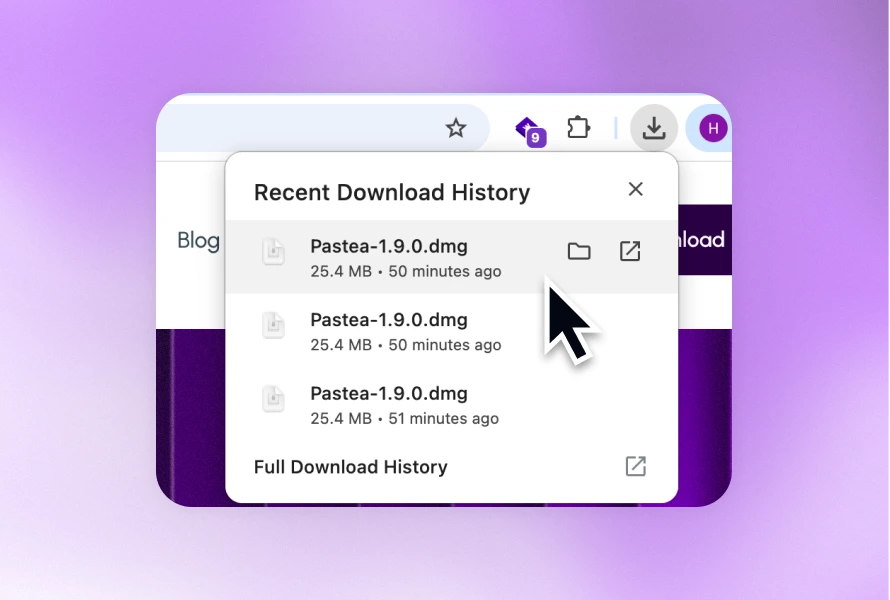
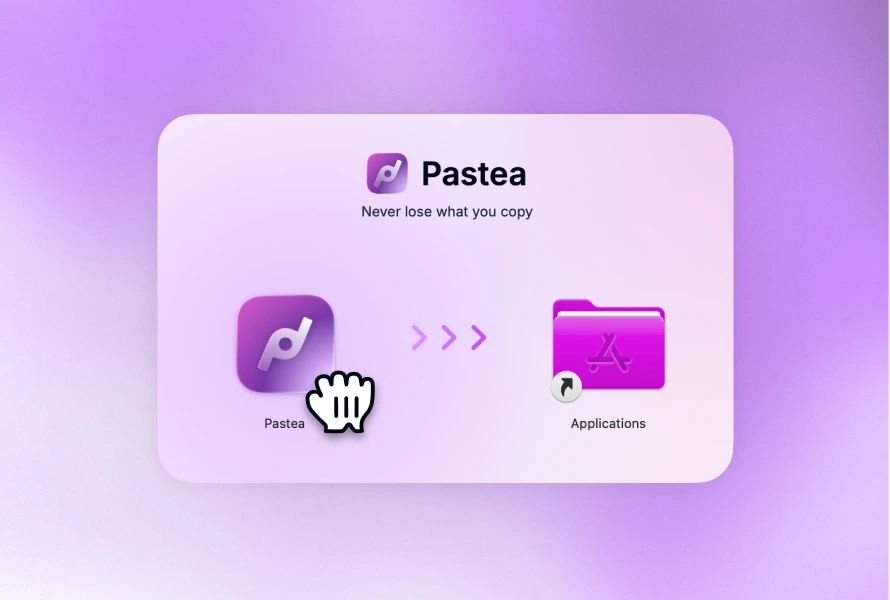
6. If Pastea records the clip but will not paste it
Pastea separates two jobs: storing the clip and pressing Paste in the app you were using.
Accessibility permission is required for the second job. It is not required to store or search history.
If selecting a Pastea clip puts it on the clipboard but does not insert it automatically:
- Open
System Settings → Privacy & Security → Accessibility. - Confirm Pastea is listed and enabled.
- If it is already enabled, switch it off and on again.
- Return to the destination and test a disposable clip.
Without Accessibility permission, Pastea can still copy the selected item to the current clipboard. Press Command-V manually afterward.
If new copies are missing from Pastea entirely, check these in order:
- press
Shift-Command-Pin case capture is paused; - check
Settings → Preferencesfor an ignored source app or content type; - check whether the source marked the item as concealed and you chose not to save concealed content;
- confirm the trial or licence still allows capture.
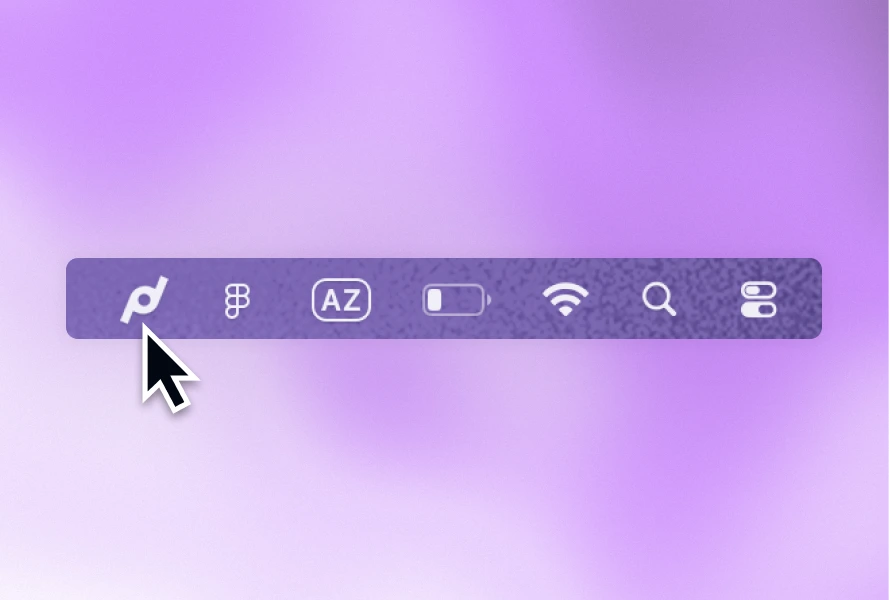
The menu-bar icon indicates when Pastea is paused or not saving new copies. The Pastea help centre keeps the current troubleshooting steps in one place.
7. Troubleshoot Universal Clipboard separately
If copy and paste work within the Mac but fail between a Mac, iPhone, or iPad, pboard is not the first thing to reset.
Apple's Universal Clipboard requires the devices to:
- be near each other;
- use the same Apple Account;
- have Wi-Fi on;
- have Bluetooth on;
- have Handoff enabled.
The copied item is available on the other device only briefly. Test with a short line of plain text and paste it immediately.
If that fails, Apple recommends installing available software updates, restarting the devices, and checking the Universal Clipboard setup again. The complete requirements are in Apple's Universal Clipboard guide.
Universal Clipboard shares the current item. It is not the same as a searchable, synced clipboard history. Our clipboard sync guide explains that distinction.
8. Restart and update the Mac
If the targeted checks did not solve the problem, save your work and restart the Mac.
A restart resets pboard along with other user services and clears conflicts that are difficult to isolate while every utility remains open.
Then check System Settings → General → Software Update. Update the affected app as well.
If the issue returns immediately after login, safe mode can help identify software that loads during startup. Apple's safe-mode guide has different steps for Apple silicon and Intel Macs, so follow the instructions for your hardware rather than guessing a startup key.
If copy and paste work in safe mode but fail after a normal restart, a login item, extension, background utility, or other startup software is the likely area to investigate.
What not to do
- Do not reset the clipboard before restoring text you cut.
- Do not install a “cleaner” just to restart
pboard. - Do not assume a disabled Paste menu means the entire Mac clipboard is broken.
- Do not run unverified Terminal commands copied from a forum.
- Do not disable work security controls without approval.
- Do not expect a new clipboard manager to recover an item copied before it was installed or enabled.
The fastest reliable fix depends on the scope
If the failure is limited to one app, restart and update that app. If the menus work but the shortcuts do not, find the shortcut conflict. If every local app fails, save what matters and restart pboard or the Mac. If only cross-device paste fails, check Universal Clipboard instead.
Once copy and paste work again, a clipboard history can reduce the damage from the next accidental overwrite. macOS Tahoe includes recent history in Spotlight. Pastea adds longer searchable history, privacy controls, and recovery across the content you copy during real work. Try Pastea for seven days if the costly part of a clipboard failure is losing the item, not just restarting the service.