How to Paste Without Formatting on Mac: Shortcuts That Actually Work

You copied a paragraph from a website. You pressed ⌘V. Now your document has the website's font, blue links, a gray background, and spacing that makes no sense.
On a Mac, the first shortcut to try is ⌥⇧⌘V. Apple calls it Paste and Match Style. But it is not universal. Google Docs and Microsoft Word currently use ⇧⌘V instead.
Here is the useful version before we explain why it is so inconsistent.
Mac paste-without-formatting shortcuts
If you need to keep the source font, links, or emphasis instead, follow our guide to pasting with formatting on Mac.
Shortcuts checked September 12, 2026.
| App or destination | Shortcut | Command |
|---|---|---|
| Apple apps that offer Paste and Match Style | ⌥⇧⌘V | Paste and Match Style |
| Google Docs | ⇧⌘V | Paste without formatting |
| Microsoft Word for Mac | ⇧⌘V | Paste text only |
| Pastea clipboard history | Select a clip, then press ⌘Return | Paste as plain text |
| Other Mac apps | Check the Edit menu | The name and shortcut depend on the app |
If you remember only one rule, make it this:
Use ⌥⇧⌘V for the Mac command. Use ⇧⌘V when the app documents its own plain-text paste shortcut.
The standard Mac shortcut: Option-Shift-Command-V
Apple documents ⌥⇧⌘V as the shortcut for Paste and Match Style.
In full, that is:
- ⌥ Option
- ⇧ Shift
- ⌘ Command
V
Place the cursor where you want the text, then press all four keys together. The pasted content should adopt the font, color, size, and other styling around the insertion point.
You can also choose Edit → Paste and Match Style from the menu bar. Apple's copy-and-paste guide recommends both methods and notes that each app decides what it can paste and when the command is available.
The four-key shortcut works in many Mac apps that use Apple's standard text-editing behavior. It is the best starting point in apps such as Pages and TextEdit, or whenever you can see Paste and Match Style in the Edit menu.
Admittedly, it is a lot of keys for removing a font.
Google Docs uses Command-Shift-V
In Google Docs on a Mac, press ⇧⌘V. Google calls this Paste without formatting in its keyboard-shortcut list. That is a Docs command, not the general macOS shortcut.
If it fails, or if you need to distinguish plain-text paste from clearing or copying text formatting, use our focused guide to pasting without formatting in Google Docs. It covers editing focus, browser and global hotkey conflicts, and Docs' nearby formatting commands.
Google Sheets is different
Do not assume ⇧⌘V means exactly the same thing across every Google app.
In Google Sheets, Google documents it as Paste values only. That can remove formulas as well as formatting when copying between cells. If you are working with a spreadsheet, check Edit → Paste special before treating it like an ordinary plain-text command.
Microsoft Word for Mac now uses Command-Shift-V
In current versions of Microsoft Word for Mac, use:
⇧⌘V
Microsoft describes this as Paste text only in its Word for Mac keyboard shortcut guide.
Older articles often say Word has no direct shortcut or recommend opening Paste Special. That advice is now outdated for current Microsoft 365 and Word releases.
Word still provides several paste behaviors because they solve different problems:
- Keep Source Formatting retains the original appearance.
- Merge Formatting removes some source styling but may retain emphasis such as bold or italic.
- Keep Text Only discards the rich formatting.
Microsoft explains those differences in its guide to controlling formatting when pasting.
Why there is no universal shortcut
⌘C and ⌘V feel like system commands, but the receiving app still controls what happens when you paste.
When you copy formatted text, the Mac clipboard can hold several representations of the same content. A rich-text editor might provide plain text, HTML, and RTF versions together. Apple's pasteboard documentation describes this model: one clipboard item can include multiple data types, and the receiving app chooses what it can use.
That leads to three different behaviors that are often described as “paste without formatting”:
| Behavior | What it usually does |
|---|---|
| Normal paste | Uses the richest representation the destination accepts |
| Paste and Match Style | Inserts the content using the destination's surrounding style |
| Paste text only | Requests the plain-text representation without rich styling |
They often produce the same visible result, but they are not technically identical.
Paste and Match Style is about the destination's appearance. Paste text only is about choosing text instead of rich content. An app may also preserve line breaks, tabs, Unicode characters, or other structure it considers part of the text.
The destination can then apply its own behavior after pasting. For example, it might automatically turn a URL into a link or convert 1. into a numbered list. That does not necessarily mean the original formatting survived. The destination may have created new formatting itself.
Check the Edit menu when a shortcut fails
The Edit menu is more reliable than guessing combinations from memory.
- Click inside the destination field.
- Open Edit in the Mac menu bar or the web app's own menu.
- Look for commands containing Plain Text, Without Formatting, Match Style, Text Only, or Paste Special.
- Use the shortcut displayed beside the command.
This also tells you whether the command is currently available.
If it is dimmed, check that:
- the cursor is in an editable text field;
- the clipboard contains text rather than only an image or file;
- the document is not read-only;
- the app allows pasting in that location;
- a modal dialog or another window does not currently have focus.
Apple explicitly notes that apps decide which clipboard items they can accept. A plain-text command cannot create text from an item that only contains an image.
Create an easier plain-text paste shortcut
If you use ⌥⇧⌘V dozens of times a day, macOS lets you assign another key combination to an existing app menu command.
Apple documents this under Create keyboard shortcuts for apps on Mac.
Add a shortcut for one app
- Open the app and note the command's exact name in its menu, such as
Paste and Match Style. - Open
System Settings → Keyboard. - Click Keyboard Shortcuts.
- Select App Shortcuts.
- Click the + button.
- Choose the destination app.
- Enter the menu title exactly as it appears.
- Assign an unused shortcut, such as ⌃⌘V.
- Click Done.
Using a specific app is safer than choosing All Applications. Different apps use different command names, so one global menu-title rule will not cover Paste and Match Style, Paste without formatting, and Paste text only at once.
The spelling and punctuation must match the menu. If your Mac or app uses another language, enter the localized command name shown on screen.
macOS App Shortcuts also cannot invent a feature. The app must expose an existing menu command, and some apps do not permit shortcut customization. Commands rendered inside a web page may not be available to the Mac's App Shortcuts system either.
Should Command-V always paste as plain text?
You can try assigning ⌘V to the plain-text command in a specific app, but remember that ⌘V is already used by normal Paste.
Apple warns that conflicting shortcuts may not work. You may need to assign normal Paste another combination before giving ⌘V to Paste and Match Style.
We would not change this across every app. Rich paste is useful when moving styled text between documents, copying linked text into an email, or transferring tables. A separate but comfortable shortcut gives you both choices.
A Pastea shortcut conflict worth knowing about
Pastea uses ⇧⌘V to open its full clipboard-history panel by default. That is the same shortcut Google Docs and Microsoft Word use for plain-text paste.
Because Pastea's panel shortcut works globally, it can receive the key combination before the destination app does. If ⇧⌘V opens Pastea instead of pasting in Word or Google Docs, nothing is broken. Two commands are trying to use the same keys.
You have three options:
- Try the Mac command, ⌥⇧⌘V, in the destination.
- Reassign Show or hide the Pastea panel in
Pastea → Settings → Shortcuts. - Use Pastea itself to paste the clip as plain text.
We recommend changing Pastea's panel shortcut if you rely heavily on ⇧⌘V inside Word or Google Docs. Pastea's keyboard shortcuts are customizable, so there is no reason to keep a collision that interrupts your normal workflow.
Paste a current or older clip as plain text with Pastea
A system shortcut helps with the item currently on your clipboard. It does not help if you copied something else afterward.
Pastea keeps searchable clipboard history on your Mac. To paste an item from that history without its formatting:
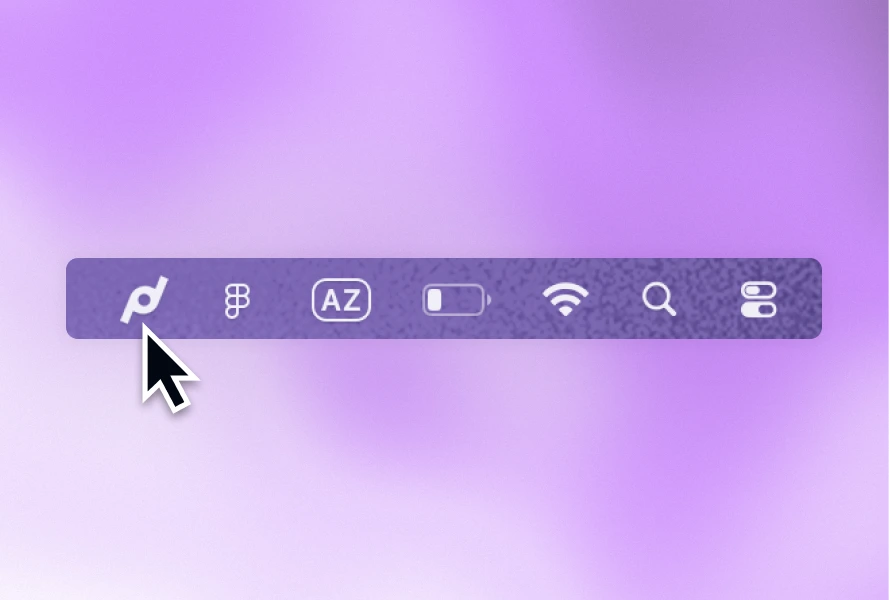
- Open Pastea.
- Search for or select the clip.
- Press ⌘Return.
Return performs a normal paste. Command-Return pastes the selected clip as plain text, as documented in the Pastea changelog.
The distinction matters because Pastea stores the available clipboard formats it captures. It does not have to flatten every copied paragraph permanently just because one destination needs clean text.
You can copy a styled block from a webpage, paste it faithfully into a document, then paste the same historical clip as plain text into an issue tracker. The formatting choice happens when you paste, not when Pastea records the copy.
This is especially useful in developer clipboard workflows, where the same copied material might go into a rich document, a code review, and a plain-text editor.
Reliable fallbacks when no shortcut works
Use the menu command
If the app provides a plain-text or match-style command, choosing it from the Edit menu avoids keyboard conflicts. It is slower, but it also confirms which behavior the app supports.
If ordinary Paste also fails in TextEdit or several other apps, formatting is probably not the problem. Follow the Mac copy-and-paste troubleshooting guide instead.
Pass the text through a plain TextEdit document
TextEdit can act as a formatting filter:
- Open TextEdit and create a new document.
- Choose
Format → Make Plain Text. - Paste with ⌘V.
- Select the text and copy it again.
- Paste into the final destination.
Apple confirms that a plain TextEdit document removes text styles and formatting.
This method works because a plain-text document cannot retain rich styling. Its disadvantage is that copying the result replaces the current system clipboard contents. A clipboard-history app can keep the original version available if you later need it.
Paste normally, then clear the formatting
As a last resort, paste with ⌘V, select the inserted text, and use the destination app's Clear Formatting, Default Style, or equivalent command.
This can be risky in an existing paragraph because it may also remove formatting that belonged to the destination. Use it when you can select only the newly pasted text.
The shortcut to remember
For most Mac apps, start with:
⌥⇧⌘V — Paste and Match Style
For Google Docs and current Microsoft Word for Mac, use:
⇧⌘V — Paste without formatting or Paste text only
If neither works, inspect the Edit menu. The app, not macOS alone, decides which paste commands exist.
If you regularly need to recover an earlier copy and choose whether it should keep its formatting, Pastea keeps both jobs in one workflow. Open your history, select the clip, and press ⌘Return when the destination needs plain text.