How to Sync Clipboard History Between Macs

To sync clipboard history between Macs, first decide what you mean by clipboard.
If you want to copy something on a MacBook and paste it immediately on a nearby iMac, Apple’s Universal Clipboard already does that. If you want a searchable collection of older text, links, code, images, and screenshots on both Macs, you need clipboard-history sync.
Those sound similar. They solve different problems.
The short answer
| What you need | Best option |
|---|---|
| Paste the latest copy on another nearby Mac | Universal Clipboard |
| Search recent copies on one Mac running macOS Tahoe | Spotlight Clipboard history |
| Search and reuse a longer history across multiple Macs | Pastea with iCloud sync |
| Move an important document permanently | AirDrop, iCloud Drive, or another file service |
| Access saved clipboard history on iPhone or iPad | Pastea's iPhone/iPad app with optional iCloud sync |
Here is the practical difference between the three clipboard options available to Mac users:
| Feature | Universal Clipboard | Spotlight Clipboard history | Pastea iCloud sync |
|---|---|---|---|
| Main purpose | Transfer the current clipboard item | Recover recent copies on one Mac | Keep searchable saved history available across Pastea devices |
| Multiple past items | No | Yes | Yes |
| Search | No | Yes | Yes, with filters such as type, source app, and date |
| Requires nearby devices | Yes | Not applicable | No; sync uses iCloud |
| Works with iPhone and iPad | Yes | No | Yes, with Pastea's native iPhone and iPad app |
| Retention control | No | Limited system-managed history | One day to forever, depending on the app version |
| Lists and saved clips | No | No | Yes |
Apple documents Spotlight history and Universal Clipboard as separate features. It does not document Spotlight’s history list as a shared archive between Macs.
For a full explanation of the built-in feature, see our guide to viewing clipboard history on a Mac.
Option 1: Use Universal Clipboard for the latest item
Universal Clipboard is the right answer when the workflow looks like this:
- Copy a link on your MacBook.
- Move to the Mac Studio beside it.
- Press
Command-V.
Apple says the copied content remains available on the other device briefly, or until you copy something else on either device.
That last part matters. Universal Clipboard is a handoff mechanism, not a history. If you copy a command, copy a file path, and then switch Macs, you cannot choose between both items. Only the current copy is available.
How to set up Universal Clipboard between two Macs
On both Macs:
- Sign in with the same Apple Account.
- Turn on Wi-Fi.
- Turn on Bluetooth.
- Open
System Settings → General → AirDrop & ContinuityorAirDrop & Handoff. - Turn on Allow Handoff between this Mac and your iCloud devices.
- Keep the Macs near each other.
You do not need to pair the Macs or open a separate clipboard window.
Copy something on the first Mac, move to a text field on the second, and press Command-V before copying anything else.
Universal Clipboard also supports compatible iPhones, iPads, and Apple Vision Pro devices. Apple maintains the current hardware and operating-system requirements in its Continuity compatibility guide.
If Universal Clipboard is not working
Start with the checks Apple recommends:
- Install available software updates on both Macs.
- Restart both Macs.
- Confirm that they use the same Apple Account.
- Confirm that Wi-Fi, Bluetooth, and Handoff are enabled.
- Move the devices near each other.
Then test with a short piece of plain text in TextEdit. That removes file formats and individual app behavior from the test.
If yesterday’s copy is unavailable, that does not mean Universal Clipboard is broken. It was never designed to retain yesterday’s copy.
Option 2: Sync searchable clipboard history with Pastea
Pastea records supported clipboard items on each Mac and can optionally sync that history through iCloud.
The result is different from Universal Clipboard. Instead of hoping the current item is still available, you can open Pastea on the second Mac and search for an earlier command, URL, screenshot, color, or piece of text.
Pastea’s iCloud sync is off by default. When enabled, clip contents, lists, and related metadata are stored in the private iCloud database belonging to your Apple Account. The data does not pass through servers operated by Pastea, and we cannot read or retrieve it. The full boundary is documented in the Pastea Privacy Policy.
What you need
Before starting, confirm that:
- Both computers run macOS 15 or later.
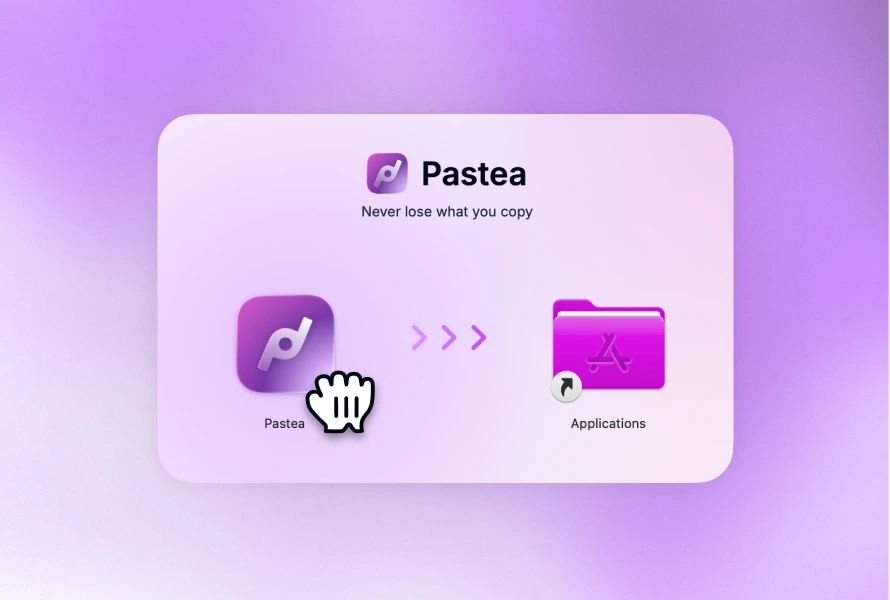
- Pastea is installed and running on both Macs.
- Both Macs are signed in to the Apple Account you want to use for sync.
- Both Macs can connect to iCloud.
- You have installed the current Pastea update on both machines.
Pastea is also available for iPhone and iPad on the App Store, requiring iOS or iPadOS 18 or later. The Mac-to-Mac setup below still applies; you can add your phone or tablet to the same private iCloud history from its Pastea Sync settings.
How to enable Pastea iCloud sync
Repeat these steps on each Mac:
- Open Pastea.
- Open
Settings. - Select Sync.
- Turn on iCloud sync.
- Leave Pastea running while the initial history becomes available.
The switch is per Mac. Turning it on for your desktop does not automatically enable it on your laptop.
You do not need to grant Accessibility permission to store, search, or sync clipboard history. That permission is only needed when you want Pastea to paste a selected clip directly into another app. Without it, Pastea can still put the item on the system clipboard for you to paste manually.
Choose the retention period before filling the history
Open Settings → General and choose how long Pastea should keep ordinary clipboard items.
The default is one month. Available options may include:
- One day
- One week
- One month
- Three months
- One year
- Forever
Pin an item or put it in a list if you want it to survive automatic retention cleanup.
There is an important cross-Mac consequence: the retention period is shared across synced Macs. You cannot keep one week on the work Mac and one year on the laptop while treating both as one synchronized history.
That rule prevents old clips on one Mac from restoring items that the other Mac has already removed.
What Pastea syncs between Macs
With iCloud sync enabled, Pastea can keep the following available across your Macs:
- Clipboard-history items
- Text, code, links, images, screenshots, colors, and other supported clips
- Lists and their contents
- Clip metadata, including the source application
- Available origin context, such as a page, document, or file location
- Text recognized inside images and screenshots
The recognized text is generated on the Mac. If sync is enabled, it travels with the associated clip so the screenshot can remain searchable on your other Mac.
Pastea syncs the history, not just a single pasteboard slot. On the destination Mac, open the Pastea panel with Shift-Command-V, search for the item, and select it.
Simply pressing Command-V without choosing a Pastea item may test Universal Clipboard instead.
Deletions also sync
Clipboard sync is not a backup.
When you delete a synchronized clip, the deletion propagates to the other Macs. Automatic retention cleanup follows the same shared policy.
That is normally what you want. A private message removed from your desktop should not quietly remain searchable on your laptop. It also means you should not rely on synchronized clipboard history as the only copy of something important.
For material you expect to reuse, pin it or add it to a list. For material you cannot afford to lose, save it in a document, repository, password manager, or other durable system.
Turning iCloud sync off stops that Mac from sending further changes and ends Pastea’s push-notification registration. It does not automatically erase data already held in your iCloud account.
Run a two-Mac arrival and deletion test
There is no useful universal promise such as “every clip arrives in exactly two seconds.” Network conditions, iCloud, clip size, and whether a Mac is awake can all affect what you observe.
A small test tells you more about your setup than an invented benchmark.
Test history arrival
- Update Pastea on both Macs.
- Enable iCloud sync on both.
- If you want to isolate Pastea from Universal Clipboard, temporarily turn off Handoff on the destination Mac.
- On Mac A, copy a unique line such as
pastea-sync-test-2026-09-13-1042. - Confirm that it appears in Pastea on Mac A. If it does not, you have a capture problem rather than a sync problem.
- On Mac B, open Pastea and search for the exact line.
- Record how long it took to appear.
- Turn Handoff back on if you disabled it.
Since Pastea 1.5, released September 11, 2026, the app listens for iCloud change notifications so clips can arrive without the panel being opened. Opening the panel or Quick View also asks iCloud for waiting changes in case a notification was missed. Pastea 1.6, released September 13, carries forward those sync and data-preservation fixes.
Test deletion behavior
Use the disposable test clip rather than anything real:
- Delete the test clip from Pastea on Mac A.
- Watch for it to disappear from Mac B.
- If it remains, open the Pastea panel on Mac B to request waiting changes.
- Repeat in the opposite direction if you want to verify both Macs.
This confirms two separate behaviors: new items arriving and deletions propagating. A system can appear to sync new clips correctly while cleanup is still out of step, so both are worth checking.
If Pastea iCloud sync is not working
Work through these checks in order.
1. Update Pastea on both Macs
Do not assume automatic updates have already finished. Open Settings → Updates, or choose Check for Updates from Pastea’s menu-bar menu.
At publication on September 13, 2026, the Pastea changelog marks version 1.6 as an important update because it carries forward the reliability and data-preservation fixes from 1.5.7.
Running the current version on one Mac and an older build on the other makes troubleshooting unnecessarily difficult.
2. Confirm that the source Mac captured the clip
Open Pastea on the Mac where you made the copy.
If the item is not there, it cannot sync. Check whether:
- Clipboard capture is paused.
- The source application is ignored.
- That content type is excluded.
- The app marked the item as concealed and you chose not to save concealed content.
- The Pastea trial or licence state has stopped new capture.
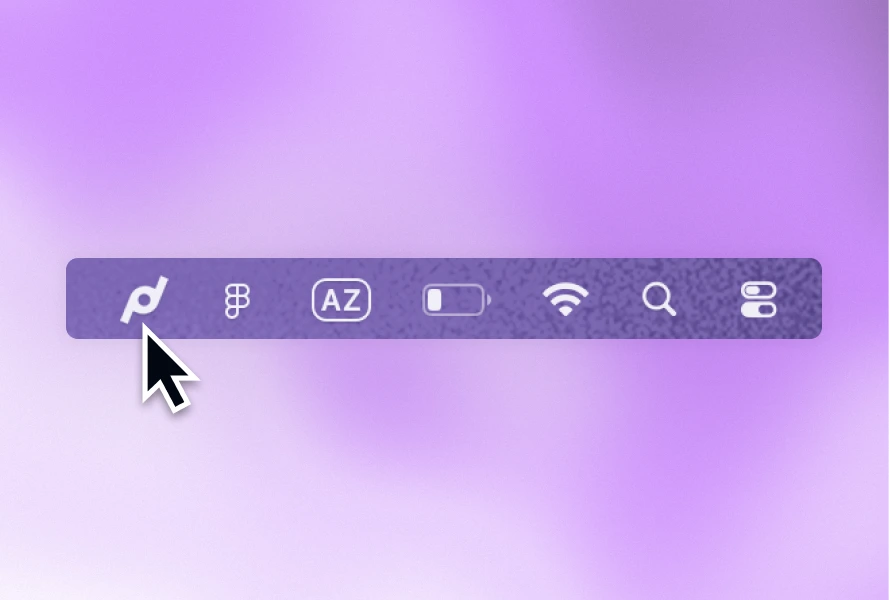
The menu-bar icon shows when Pastea is not saving new copies.
3. Confirm that sync is enabled on both Macs
Open Settings → Sync on each computer. Sync being enabled on one Mac is not enough.
Also confirm that both Macs use the same Apple Account. A private iCloud database belongs to that account; two different accounts do not share the same private database.
4. Open the panel on the Mac that is behind
Press Shift-Command-V on the destination Mac.
Current versions of Pastea explicitly ask iCloud for waiting changes when the panel or Quick View opens. This provides a fallback when an automatic notification does not arrive.
5. Check iCloud itself
Confirm that both Macs have a working internet connection and remain signed in to iCloud. You can also check Apple’s System Status page for an active iCloud incident.
If the account or iCloud service is unavailable, Pastea cannot fetch the private database until access returns.
6. Restart before changing or deleting cloud data
Quit and reopen Pastea. If necessary, restart both Macs.
Avoid deleting iCloud data as an early troubleshooting step. Synced deletion is intentional, and removing the only good copy of a history is not a useful diagnostic technique.
If sync is still stuck, contact Pastea support with the Pastea version, macOS version, Mac model, and which direction is failing. Those details are more useful than “sync does not work.”
Understand the privacy boundary before enabling sync
Local-only history and synchronized history have different risk profiles.
With Pastea sync disabled, clipboard history stays in Pastea’s local data on that device. With sync enabled, copies exist on the Macs, iPhones, and iPads where you enable Pastea sync, and in your private iCloud database.
Pastea does not receive the clipboard history on servers we operate. Apple operates the iCloud infrastructure, so Apple’s terms and privacy policies apply to storage and transmission.
Pastea also registers the Mac with Apple’s push notification service while sync is on. Those notifications contain no clipboard content. They tell Pastea that its private iCloud database changed, after which the app fetches the change from iCloud.
Before syncing a personal and work Mac, review what each machine is allowed to capture:
- Ignore password managers, banking apps, or confidential work tools.
- Exclude content types you never need in history.
- Configure concealed-content handling.
- Pause capture with
Shift-Command-Pbefore handling secrets. - Keep a shorter retention period if you rarely search far back.
- Turn off link previews if copied URLs should never be requested from their websites.
No password or secret detector catches everything. If an app fails to mark sensitive content as concealed, Pastea cannot reliably infer what the text means.
Read how Pastea keeps your clipboard private for the product-specific details, or use our broader checklist for deciding whether a clipboard manager is safe on your Mac.
Not every cloud clipboard uses vendor servers
“Cloud sync” does not describe one universal architecture.
Pastea uses the private iCloud database associated with your Apple Account. Paste’s official storage documentation describes a similar private-iCloud design. Other clipboard tools may use their own accounts and servers, local-network transfer, manual export, or no sync at all.
Check each app separately. Useful questions include:
- Where is synchronized history stored?
- Can the app developer access it?
- Which content and metadata sync?
- Do deletions propagate?
- Is retention shared?
- Can sensitive apps or content types be excluded?
- What remains after sync is turned off?
A local-first app with optional iCloud sync is not the same as a strictly local app. It is also not automatically the same as an app that uploads clipboard content to company-operated servers.
What about clipboard history on iPhone and iPad?
Universal Clipboard works with supported Macs, iPhones, and iPads, but it still transfers only the current item briefly.
Pastea has native iPhone and iPad apps that can join the same saved history as your Mac. On each device, sign in to the same Apple Account and enable iCloud sync in Pastea's Sync settings. Open Pastea on both devices while testing, allow time for iCloud changes to arrive, and search for a harmless test clip.
Capture works differently on mobile. Save supported text, links, or images through the Share menu, or open Pastea after copying. iOS does not let Pastea continuously record clipboard changes in the background. You can browse and search saved clips in the app or insert them into another app using the Pastea keyboard. The iPhone and iPad help section covers saving, keyboard setup, and access.
Which method should you use?
Use Universal Clipboard if you only need the latest copy to jump between nearby Apple devices. It is built in, quick, and requires no extra app.
Use Spotlight Clipboard history if each Mac only needs its own recent history and both run macOS Tahoe. It may solve the problem without installing anything.
Use Pastea iCloud sync if you want searchable saved history, screenshots, lists, source information, and older clipboard items to follow you between Macs, with an iPhone and iPad companion when you need mobile access.
The dividing line is simple:
Universal Clipboard moves the copy you have now. Clipboard-history sync helps you find the copies you had before.
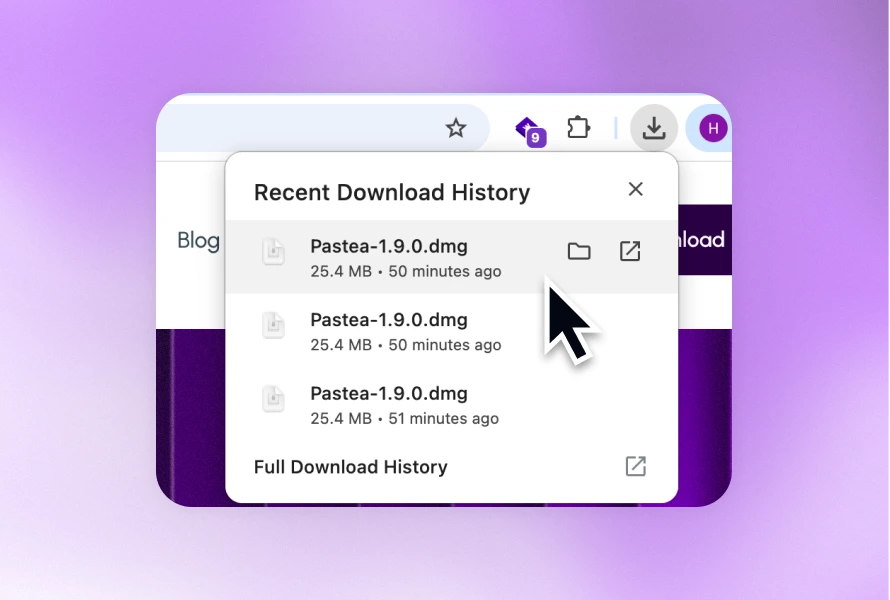
If the second problem sounds familiar, download Pastea, enable iCloud sync on both Macs, and test it with disposable text before trusting it with your normal workflow. The full app has a seven-day trial with no card required.