How to Clear the Clipboard on iPhone
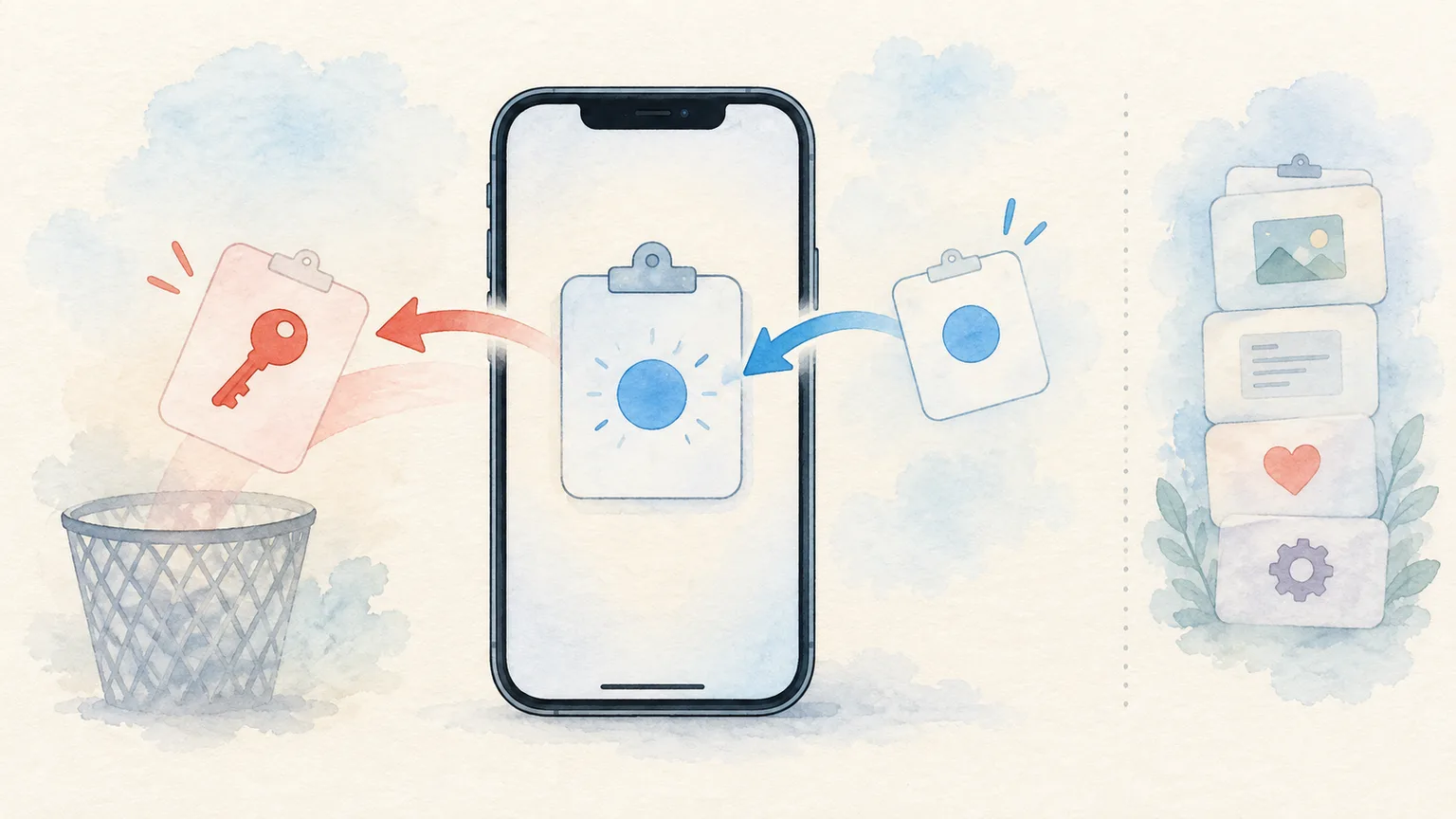
Copied a password or private message on your iPhone and want it gone? Copy a harmless word to replace the current clipboard item. Then check any clipboard app that may have saved the earlier copy. iPhone does not have a single “clear everything I copied” button.
The distinction matters. Replacing what the next Paste action uses is quick. Removing a copy stored by another app is a separate job.
Replace the current item
- Open Notes or any app where you can type.
- Type a harmless word such as
cleared. - Select the word and tap Copy.
- If you want to check, open a new note, tap in it, and tap Paste. You should see the harmless word.
Apple's iPhone copy-and-paste instructions describe the same select-and-copy action. Copying another item changes the systemwide pasteboard used by ordinary paste actions. It does not reach into every app that might have saved the earlier value.
If you copied an image rather than text, the same replacement method works: copy harmless text and check that the next paste inserts the text. You do not need a third-party “clipboard cleaner” for this basic task.
Can you delete iPhone clipboard history?
Apple's built-in iPhone copy-and-paste guide describes the current copy, not a screen where you can browse and delete a list of previous copies. If an app shows you clipboard history, that list belongs to the app. Open it and use its own delete or clear-history controls.
| Where the copy may be | What to do |
|---|---|
| Current iPhone clipboard | Copy harmless text to replace it |
| A clipboard app's saved history | Delete the item in that app; check its sync and retention settings |
| A note, message, form, or document where you already pasted it | Delete it from that destination separately |
| A Mac or iPad clipboard history | Check the history app or system feature on that device |
That last row is easy to miss. Apple's Universal Clipboard can make a recent iPhone copy available on a nearby Mac or iPad using the same Apple Account. It is a transfer feature, not a command that removes text already pasted or saved on the other device. If you also use a Mac clipboard manager, inspect its history separately. Our Mac clipboard-clearing guide walks through the current item, Spotlight history, and app history.
What if you copied a password or recovery code?
Replacing the current clipboard reduces the chance that the next casual paste exposes it. It does not retract a message you sent, erase an app's history, or invalidate a credential someone else already saw.
If the secret went into the wrong chat, form, or document, deal with that destination first. If a password, API token, or recovery code may have reached another person or service, rotate or revoke it where it was issued. Clipboard cleanup is the final housekeeping step, not the whole response.
Also check whether your password manager clears copied credentials on a timer. Apple lets app developers set an expiration for certain pasteboard items, but that does not mean every ordinary copy expires at a predictable time. Apple's pasteboard documentation describes those app-controlled options.
Does restarting or uninstalling an app clear it?
Do not use a restart as your deletion method. Apple's documentation says the general iPhone pasteboard can persist across device restarts and app uninstalls. Copying harmless text gives you a direct, checkable replacement instead.
Uninstalling a clipboard app also is not a reliable way to understand what it saved elsewhere, especially if it syncs. Inspect the app's deletion and sync controls first. If you use Pastea on Mac, its privacy policy explains how local history and optional iCloud sync are handled; the publicly available download on our site is currently the Mac app.
The quick rule
Copy something harmless to replace the current iPhone clipboard item. Then delete any saved copy in the app or device that stored it. If the content was a credential and may have been exposed, change the credential too.